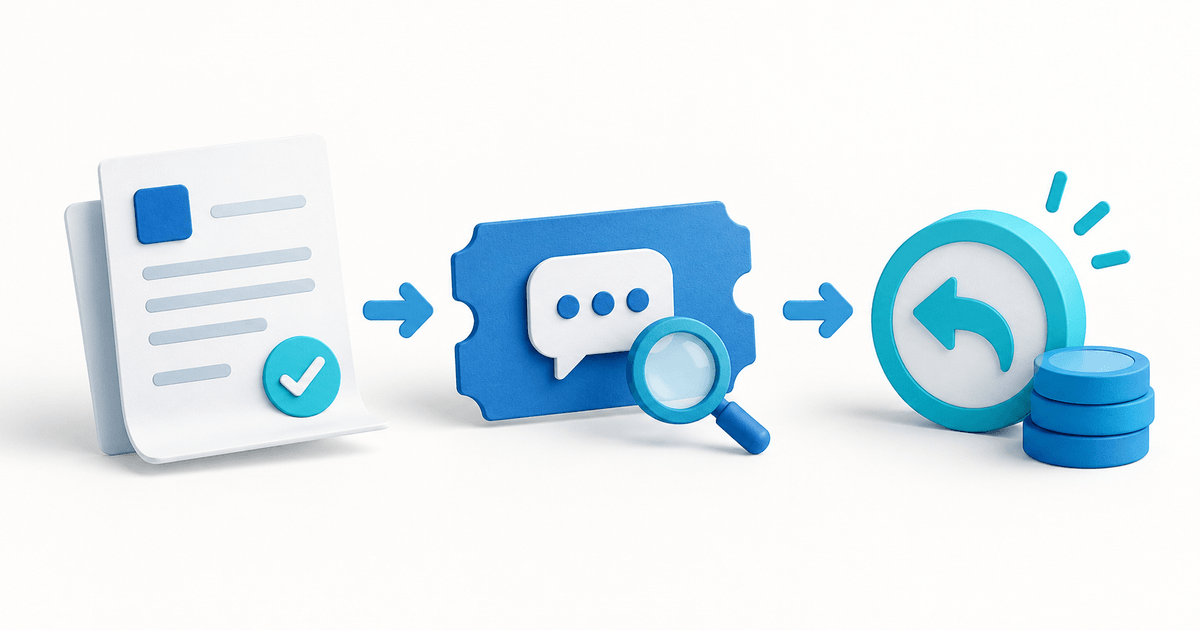
A refund request in the PayRequest Customer Portal creates an invoice-linked support ticket. It does not automatically return money. The supplier reviews the request, decides what to approve and processes any refund through the supported payment workflow.
For customers checking a refund and businesses answering them, the useful question is which stage has actually finished. A success message after submitting a request confirms the request, not the customer's bank balance.
Keep three records separate
Use this original handoff checklist. These are operational checkpoints, not additional PayRequest status names.
| Record | Evidence to retain | What it does not prove |
|---|---|---|
| Request | Invoice number, ticket reference, reason, requested amount | Approval or returned money |
| Decision | Approved amount or decline reason, reviewer, response date | Successful provider processing |
| Refund | Provider refund reference, amount and current status | The exact day money appears at the customer's bank |
PayRequest's refund-request documentation explicitly describes a support ticket rather than an automatic refund. Give each checkpoint an owner: the customer supplies the reason; the merchant decides and initiates processing; the payment record establishes the processing state.
Submit one request from the paid invoice
In the shop-linked Customer Portal, open Invoices and select the relevant paid invoice. Choose Request Refund, review its number, date, amount and line items, then explain the reason and submit.
The request page links the ticket to that invoice. The button is only offered for paid invoices; an unpaid, pending or cancelled invoice uses a different support workflow. A wrong address on an invoice is a document-correction question, so describe the actual problem rather than requesting money that was never collected.
When an open or in-review refund request already exists, PayRequest disables the button as Refund Requested. Follow the existing ticket instead of creating a second generic request. The portal is the customer's account area, separate from the supplier's business dashboard.
Describe a partial request precisely
Suppose an illustrative invoice contains EUR 180 for completed work and EUR 60 for a separately identified item under review: EUR 240 in total. If the customer is requesting only the second item, write “EUR 60 for [line item] on invoice [number]”, not “refund the invoice”.
If the merchant approves EUR 60 and that refund succeeds, EUR 240 minus EUR 60 equals EUR 180 remaining from the original payment. This calculation is a communication example, not a decision about eligibility, tax treatment or how a billing document should be corrected. Record the actual approved amount before initiating a refund; a request alone does not authorize it.
Close the handoff with evidence
The documented merchant workflow is to review the linked ticket, decide on a full or partial refund or decline, process an approved refund through Mollie or the supported invoice refund functionality, and respond on the ticket. Do not assume identical refund controls for every connected provider. Check the original payment's supported route.
Use a reply such as: “Request [ticket] concerns invoice [number]. We have [approved amount / declined with reason]. Processing is [not started / submitted with reference / confirmed by the provider]. We will update this ticket if that status changes.” Avoid promising a bank arrival date you cannot establish.
Resolving the ticket is a support action; retain the payment evidence too. A credit note, subscription cancellation and returned payment are different records and may require separate actions. If the invoice is paid but the request button is missing, send the invoice reference through the supplier's known support channel.
Make the next request easier to review
Use the PayRequest Customer Portal to connect a customer question to the actual invoice, and Support Requests to manage the review and reply. Start with one paid invoice and agree who verifies the refund record before the ticket is closed.
Editorial note: AI assisted with this article and its illustrative cover. Published documentation was checked on 3 October 2026. The checklist, message and amounts are original examples; no customer-account test or refund outcome is claimed.