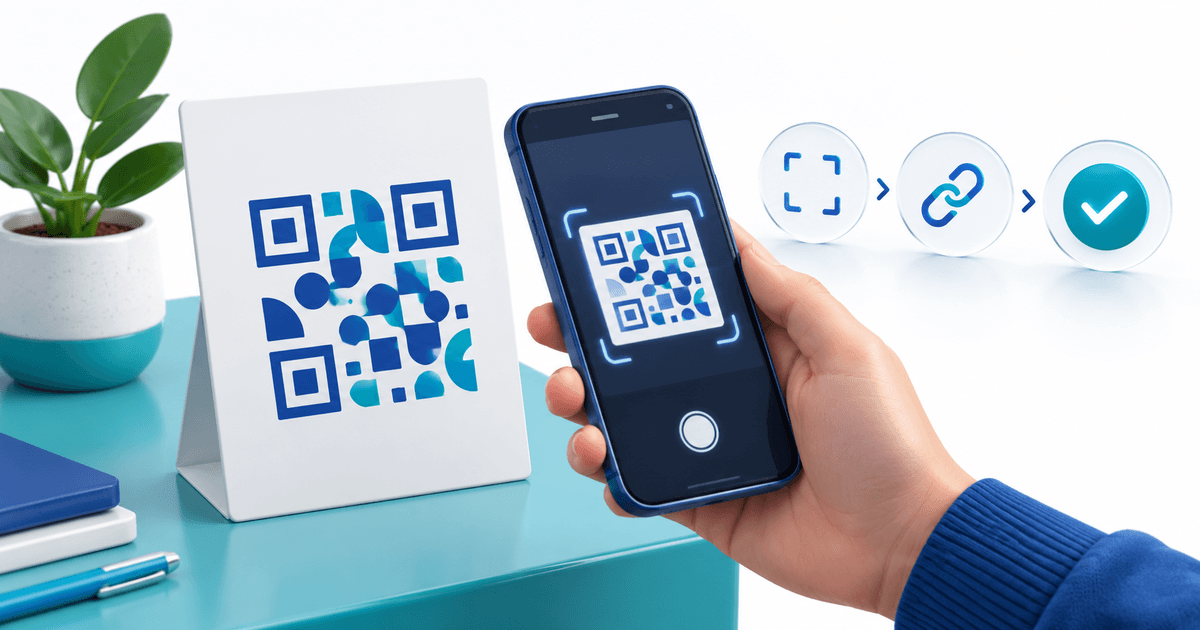
Before releasing a printed payment QR code, check three separate things: the physical print scans, the decoded link opens the intended payment page, and a completed payment is confirmed in the merchant record. A successful camera scan proves none of the payment outcome. Approve the installed sign, not just the design on a screen.
This preflight is for a service desk or event organizer printing a payment sign. It focuses on print acceptance and fault isolation; the broader QR payment page guide covers choosing and creating the payment flow.
Start from the actual payment destination
The PayRequest QR Code Payments documentation describes opening a Smart Link's Share view and saving its QR image. The QR encodes that link's URL. Use the code from the intended link rather than a screenshot copied from an old poster.
Record the link URL, purpose, expected amount or customer-entered amount, currency and print revision. Open the copied URL directly before testing the QR. If direct opening reaches the wrong offer, changing paper or enlarging the code will not fix it. The release card below is an original merchant worksheet, not a new dashboard feature.
Leave the quiet zone outside the artwork
DENSO WAVE's code-area guidance specifies a blank border four modules wide on each side of a standard QR symbol. A module is one little square in the pattern. Do not crop that border or put a caption, frame or decorative mark inside it.
For an original sizing example, assume a symbol is 29 modules across and the total printed square, including its border, is 40 mm wide. The full grid is 29 + 4 + 4 = 37 modules. Each module is 40/37 = 1.081 mm; each side's blank margin is about 4.324 mm; the symbol itself is about 31.351 mm wide. These are illustrative dimensions, not a measurement of PayRequest's QR export or a guarantee for every camera.
DENSO's module-size guidance also relates module size to printer resolution. Avoid stretching a small raster export into a blurry poster. Preserve square proportions and sharp edges, then test the printed result.
Work through the installed-sign test matrix
Test the final material at the customer's viewing distance and angle, including actual lighting. Glossy lamination or a shadow can create a problem absent from the digital design. The PayRequest print guidance recommends checking with at least three phone cameras.
| Check | Evidence to record | If it fails |
|---|---|---|
| Physical decoding | Phone, print revision, distance, lighting; decoded URL | Check blur, cropping, glare and blank border |
| Destination | Expected domain, seller, offer, amount and currency | Stop distribution; correct the source link or sign |
| Payment result | Authorized test's merchant reference and actual state | Investigate payment setup; do not call the scan a payment |
Use an appropriate provider test environment where available. If your normal launch process includes an authorized low-value live transaction, account for it separately and follow the provider's normal process. This article reports no physical scan or live payment test.
Separate pending payment from a successful scan
A code can scan perfectly while the page is unavailable. A page can open correctly while payment fails or remains pending. Diagnose the layer that failed instead of repeatedly regenerating the QR.
Give staff a rule for each result: no page means another payment route or assistance; wrong page means remove the sign; pending payment means check the record before treating the service as paid. A customer screenshot or return to the browser is not a substitute for the actual merchant payment state. Keep customer communication tied to the payment reference.
Keep a small release card with the sign
Use these fields for each placement: sign ID, location, print revision, intended URL, expected offer/amount/currency, device results, payment-test reference where applicable, owner and approval date. Record “not tested” rather than leaving an empty box that another staff member might read as a pass.
For example, a workshop desk sign can pass three camera checks but open last month's event. That is a destination failure, even if the printed symbol is sharp. Remove it, correct the destination or replace the print, and rerun all relevant checks. Do not infer QR placement attribution from aggregate link views when the same link is also shared by email.
Recheck when the print or offer changes
A new printer, smaller sign, different laminate, moved placement or changed offer warrants another check. Inspect the sign at opening and replace damaged or unexpected overlays. Keep a human-readable seller/domain cue beside the code, outside its quiet zone, so customers can compare what they opened.
Open the Share view for one PayRequest QR Payment Link, keep the payment-link destination explicit and approve the installed sign with the three-layer matrix.
Editorial note: AI assisted with this article and cover. Sources were reviewed on 8 October 2026. The sizing example is a calculation and the cover is a nonfunctional illustration, not a scannable payment code or a tested print.