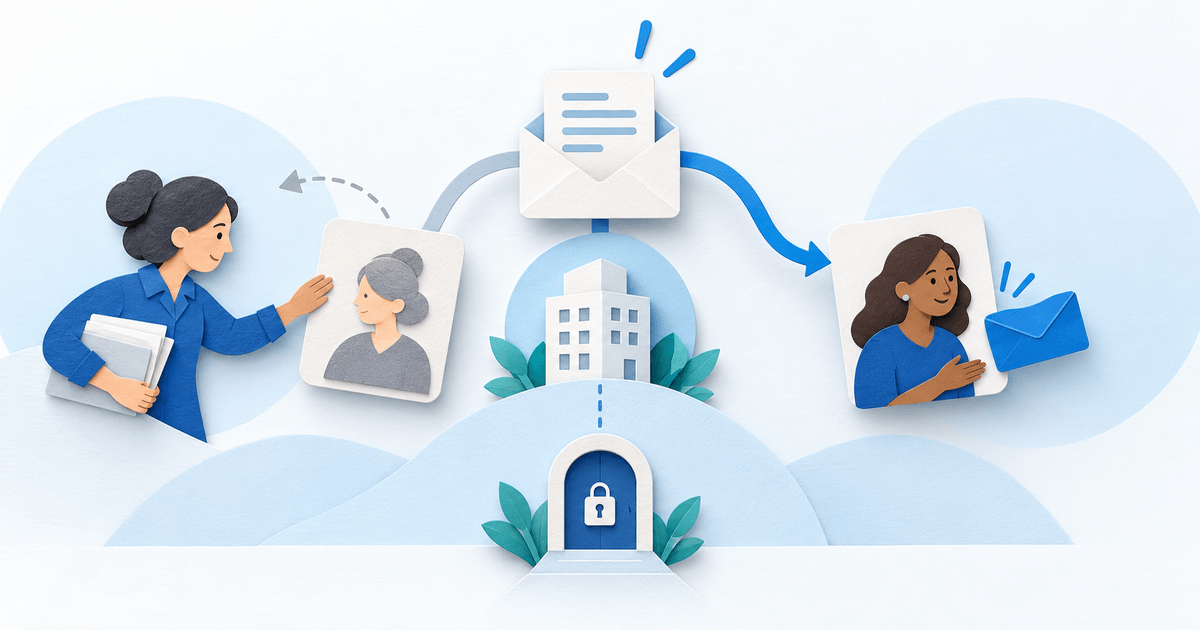
To give a new bookkeeper invoice emails in PayRequest, add them as a Contact Person and enable Billing emails. They receive copies as CC; they do not receive Customer Portal login access. Keep the primary customer account separate from the person who needs invoice notifications.
This workflow is for businesses and their customers changing the person who handles supplier invoices. It solves future routing and an orderly handoff, rather than turning an email recipient into an account administrator.
Separate the customer, contact and role
The Contact Persons documentation distinguishes the primary customer from additional recipients. The primary customer remains the main email recipient and the only customer account that can log in. A contact's role, such as Bookkeeping or Billing, is a descriptive label: it does not grant permissions or select notifications automatically.
Choose the actual notification categories. Billing includes invoices, payment confirmations, reminders and overdue notices. Account includes order and subscription updates. If the incoming bookkeeper only needs billing information, leave Account emails off. Check the choices shown in the current interface rather than assuming a job title configures them.
Use a recipient handoff worksheet
This original worksheet records the change without pretending it is a built-in PayRequest export. Ask the customer to confirm the new address and agreed cutoff before changing recipients.
| Record | Example to confirm | Completion evidence |
|---|---|---|
| Primary account | Existing customer login remains responsible | Named customer owner |
| Incoming recipient | New bookkeeper, Billing on, Account off | Saved contact and category choices |
| Outgoing recipient | Remove after authorized handoff | Removal recorded with cutoff |
| Historical documents | Invoices issued before the change | Customer supplies agreed documents |
| First future notification | Next legitimate invoice or payment email | New recipient confirms receipt |
For an illustrative change on 4 October, the new contact handles future notifications after setup. The customer separately supplies September invoice PDFs. Adding the contact does not establish that old messages were resent, read or complete.
Add the new billing recipient
The customer opens Contact Persons in the portal sidebar, chooses Add Contact Person, enters the name and email, selects an appropriate role and sets Billing and Account preferences before saving. The merchant can also add, edit or delete contacts from the customer's detail page in the business dashboard. These are two routes to managing the same customer-linked recipients.
PayRequest documents a maximum of ten contacts per customer. An address may appear only once for that customer, and the primary customer's own address cannot be added again as a contact. If an address already exists, edit that record rather than creating a second customer account merely to receive copies.
Hand over old invoices separately
The Customer Portal documentation describes downloading invoice PDFs and viewing payment history. The primary customer can use that workflow to provide the agreed historical documents to the new bookkeeper through their normal authorized process. Do not share the customer's password or promise a separate contact login that does not exist.
Removing a contact stops future notifications immediately; PayRequest does not send a removal notification. Communicate the cutoff yourself. Removal does not recall emails already delivered, revoke files already saved, or prove the historical handoff is complete.
Confirm routing with the next real email
Use a message such as: “From [date], [contact] receives Billing copies for customer [reference]. The primary account remains [owner]. Historical invoices through [cutoff] are supplied by [owner]. Please confirm receipt of the next expected invoice notification.” Do not generate a fictitious payable invoice just to test routing.
If the expected copy does not arrive, first check the saved address, category and whether a matching notification was actually sent. Then investigate delivery separately. A contact saved successfully is not evidence that every mailbox accepted the message.
Start with PayRequest Contact Persons and review one customer's recipient list. Use the Customer Portal for customer-managed contact changes and historical invoice access.
Editorial note: AI assisted with this article and its illustrative cover. Published documentation was checked on 4 October 2026. The worksheet and message are original planning examples, not a customer-account test.