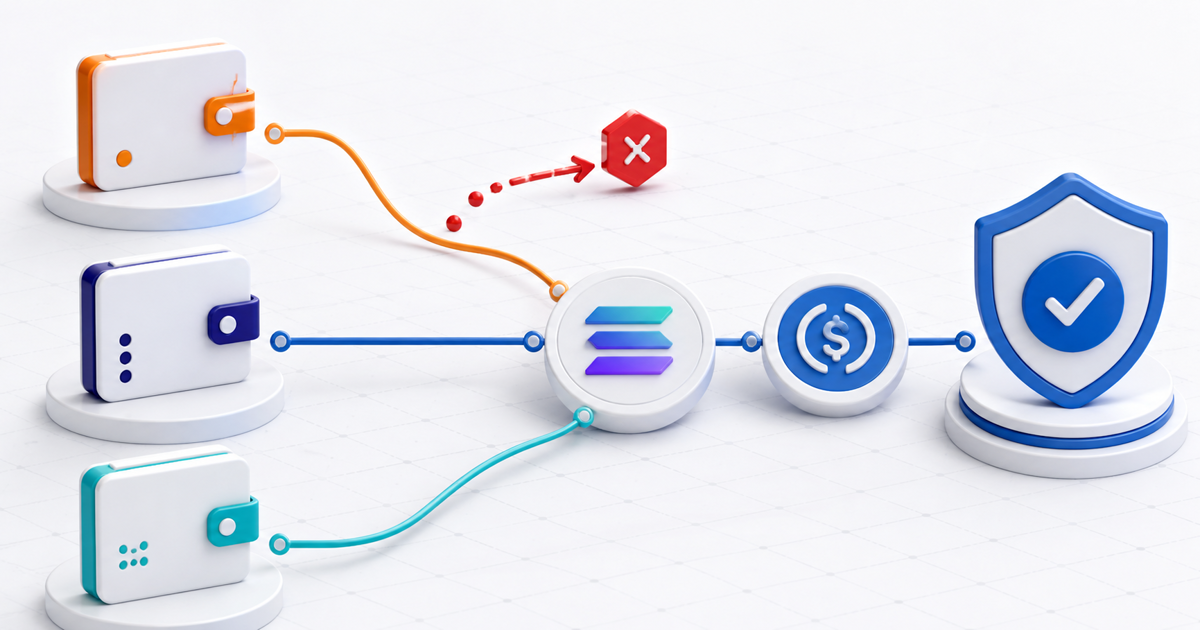
To pay a Solana USDC checkout with MetaMask, Phantom or Solflare, select the wallet, make sure the payment uses your Solana account and native USDC on Solana, then review the recipient, amount, network and fee before signing. An Ethereum `0x...` address is not your Solana payment account, even when both addresses appear under the same wallet profile.
The checkout creates the transaction; your wallet displays what you are authorizing. You are not sending your seed phrase, transferring Ethereum USDC or giving the merchant permanent control of your wallet.
The One Check That Prevents Most Mistakes
Before signing, the wallet should show this combination:
| Field | Expected value |
|---|---|
| Asset | USDC |
| Network | Solana |
| Account | Your Solana account, not an EVM account |
| Recipient | The merchant destination supplied by checkout |
| Amount | The checkout total |
| Fee | The fee payer and any SOL requirement shown by the wallet |
Stop if the wallet shows Ethereum, Base, Polygon, an unfamiliar token, an unlimited token approval, a different amount or a destination that does not match the payment request.
Circle lists native Solana USDC under mint address `EPjFWdd5AufqSSqeM2qN1xzybapC8G4wEGGkZwyTDt1v` in its official USDC contract-address directory. This is useful when a wallet contains several assets named “USDC” or a bridged lookalike.
Pay With MetaMask
MetaMask now supports Solana natively. Its Solana account guide explains that each MetaMask account has a Solana address alongside its EVM address.
- Open the PayRequest checkout and choose the wallet connection option.
- Approve the connection in MetaMask.
- Switch to the Solana address attached to the intended account if MetaMask presents more than one network address.
- Confirm that the asset is USDC on Solana.
- Review the transfer details and sign once.
- Return to checkout and wait for the confirmed state.
If you only see a `0x...` address, you are looking at the EVM side of the account. Do not paste it into a Solana field. Open the account's network-address selector and choose Solana.
Pay With Phantom
- Open the checkout in Phantom's in-app browser or use the desktop checkout's QR/wallet handoff.
- Select the Solana account holding the required native USDC.
- Read the transaction preview. Confirm USDC out, the expected amount and the merchant destination.
- Check the network fee line. If the fee is not sponsored, the wallet may require a small SOL balance.
- Approve the transaction and let PayRequest verify it.
Phantom supports multiple networks, so seeing Phantom's familiar interface is not enough. The review must still say Solana.
Pay With Solflare
- Open the PayRequest link and choose Solflare through the offered wallet connection or QR route.
- Unlock the correct Solana account.
- Confirm the token is native USDC on Solana and check the exact amount.
- Review the destination and any fee warning.
- Sign and wait for checkout confirmation before closing either app.
If a QR opens a connection request but no transaction appears, return to the checkout tab. Wallet connection and payment approval are two separate steps.
What WalletConnect Changes
WalletConnect announced support for spending SOL, USDC and USDT on Solana through WalletConnect Pay in May 2026. Its Solana announcement says supported payments can move straight from the user's wallet without bridging or off-ramping.
WalletConnect is the secure communication path between checkout and wallet; it is not the asset or network. You still need the right USDC balance on Solana, and you still approve the transaction inside your wallet.
What Are You Actually Signing?
For a payment, you should be signing a specific Solana transaction that transfers the displayed amount of USDC to the checkout destination. The exact instruction list can vary—for example, a transaction may create a missing associated token account or include an order reference—but the net asset change should match the purchase.
These are different actions:
- Connect: lets the checkout request your public account and propose a transaction.
- Sign a message: proves control of an address but should not transfer funds.
- Sign a transaction: authorizes the described on-chain instructions and can move USDC.
Never enter a recovery phrase or private key into a payment page. A legitimate wallet connection does not need either.
Troubleshooting a Failed Solana USDC Payment
| Symptom | Likely cause | Safe next step |
|---|---|---|
| Address begins with `0x` | Ethereum/EVM account selected | Choose the wallet's Solana network address |
| USDC balance looks too low | Funds are on another chain | Do not send; obtain native USDC on Solana through a trusted route |
| Wallet says insufficient SOL | Payer owes the network fee | Add a small SOL balance or confirm whether the checkout sponsors it |
| Connected but no payment prompt | Connection completed, signature not requested | Return to checkout and continue the payment step |
| Wallet says confirmed, checkout says pending | Verification is still running or details do not match | Keep the transaction signature and wait; do not pay twice |
| Checkout failed after signing | Transaction may have expired or been rejected | Check the signature in a Solana explorer before retrying |
Do not “fix” a network mismatch by sending manually to an address copied from chat. Restart from the original merchant payment link so the order and transfer remain connected.
Use the PayRequest Solana payment-link guide for the full checkout flow, or read how sellers accept USDC on Solana without code.