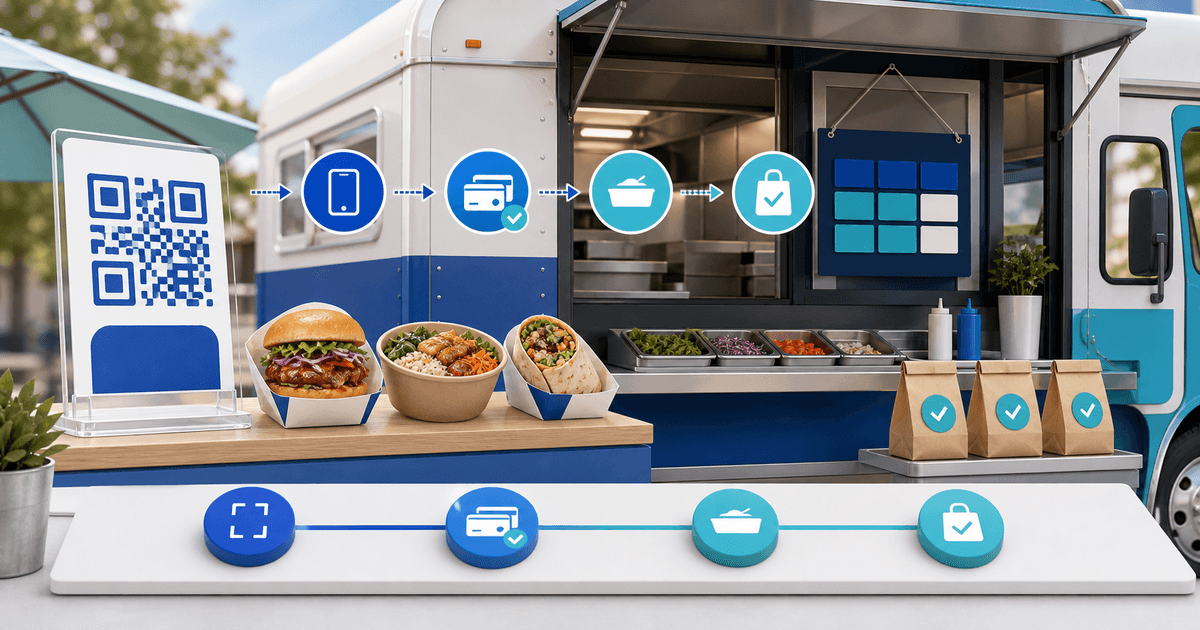
A food-truck QR payment link works best for a small, fixed preorder menu with a named service date, pickup window, location and collection reference. Do not use one undifferentiated “pay here” code for every pitch: staff then have to guess which menu, truck, time and customer a confirmed payment belongs to.
This workflow is for independent food trucks and event vendors that need order-ahead payments without building a website or full restaurant POS. Its original asset is a service-window reconciliation board that joins each QR code to capacity and confirmed collection.
Decide Whether a Payment Link Fits the Order
A simple payment page suits a short menu, fixed price and low number of modifiers. Use a dedicated ordering or POS system when the workflow needs live stock across many items, kitchen routing, complex tax rules, delivery zones, loyalty or real-time table management.
| Order shape | Suitable workflow |
|---|---|
| One lunch special, one pickup window | Customer-specific or reusable payment page |
| Three fixed bundles with limited quantities | Separate product links with clear capacity control |
| Catering deposit followed by a balance | Booking/deposit link plus referenced final invoice |
| Large menu with modifiers and live inventory | Purpose-built ordering/POS system |
The QR code is only a way to open the URL. It does not prove payment, reserve stock by itself or replace food-safety, allergen, tax and cancellation information required in your market.
Build a Service-Window Reconciliation Board
Create one row per truck, date and pickup window before publishing the code.
| Field | Example | Control |
|---|---|---|
| Service identity | FT-0831-LUNCH | Printed on page, confirmation and kitchen list |
| Location | Market Square, north entrance | Repeated before checkout and in collection message |
| Pickup window | 12:00–12:30 | Capacity belongs to this interval, not the whole day |
| Offer | Falafel lunch bundle | Included items and permitted choices stated clearly |
| Capacity | 30 prepaid bundles | Stop or replace the link when the operational limit is reached |
| Collection key | Customer name + short order reference | Staff verify the paid record rather than a screenshot |
Make separate links when price, tax treatment, location or service window materially differs. That keeps the payment description and reconciliation export useful.
Design and Test the QR Touchpoint
Put the offer, price, date, location and pickup window in readable text beside the code. Add a short fallback URL and a contact route. Do not print only a QR graphic: a customer should know what scanning commits them to before opening a camera.
Test the final print at the actual size, distance and lighting. Scan with at least one iPhone and one Android device over mobile data, complete a small real payment through the connected provider and confirm the result appears in the seller view. A generated code that opens checkout is only half a test; the paid order must also reach the service board.
Prevent Screenshot and Capacity Errors
At collection, search the live paid record using the order reference and customer detail. A payment screenshot can be old, edited or attached to another service window. Train staff to distinguish pending, failed, refunded and completed states.
Set a clear preorder cutoff and assign one person to close, replace or label the link when capacity is reached. If a sold-out code will remain on posters, redirecting it to a truthful sold-out or next-service page is better than accepting orders the kitchen cannot fulfill.
Create the Page and Reconcile the Shift
PayRequest's QR payment-link feature creates a scannable route to hosted checkout, while payment links keep each offer shareable without a separate website. Use the nearest supported product or booking setup for the actual offer; do not claim that a generic link manages live kitchen inventory.
After service, reconcile completed payments against prepared bundles, collections, refunds and no-shows. Investigate every unmatched row while staff still remember the shift. Keep the service ID consistent across the payment description, prep list and refund record.
Run a five-order rehearsal before printing broadly: two normal collections, one failed payment, one duplicate attempt and one refund. The workflow is ready when counter and kitchen staff can identify the correct paid order without trusting a customer screenshot.