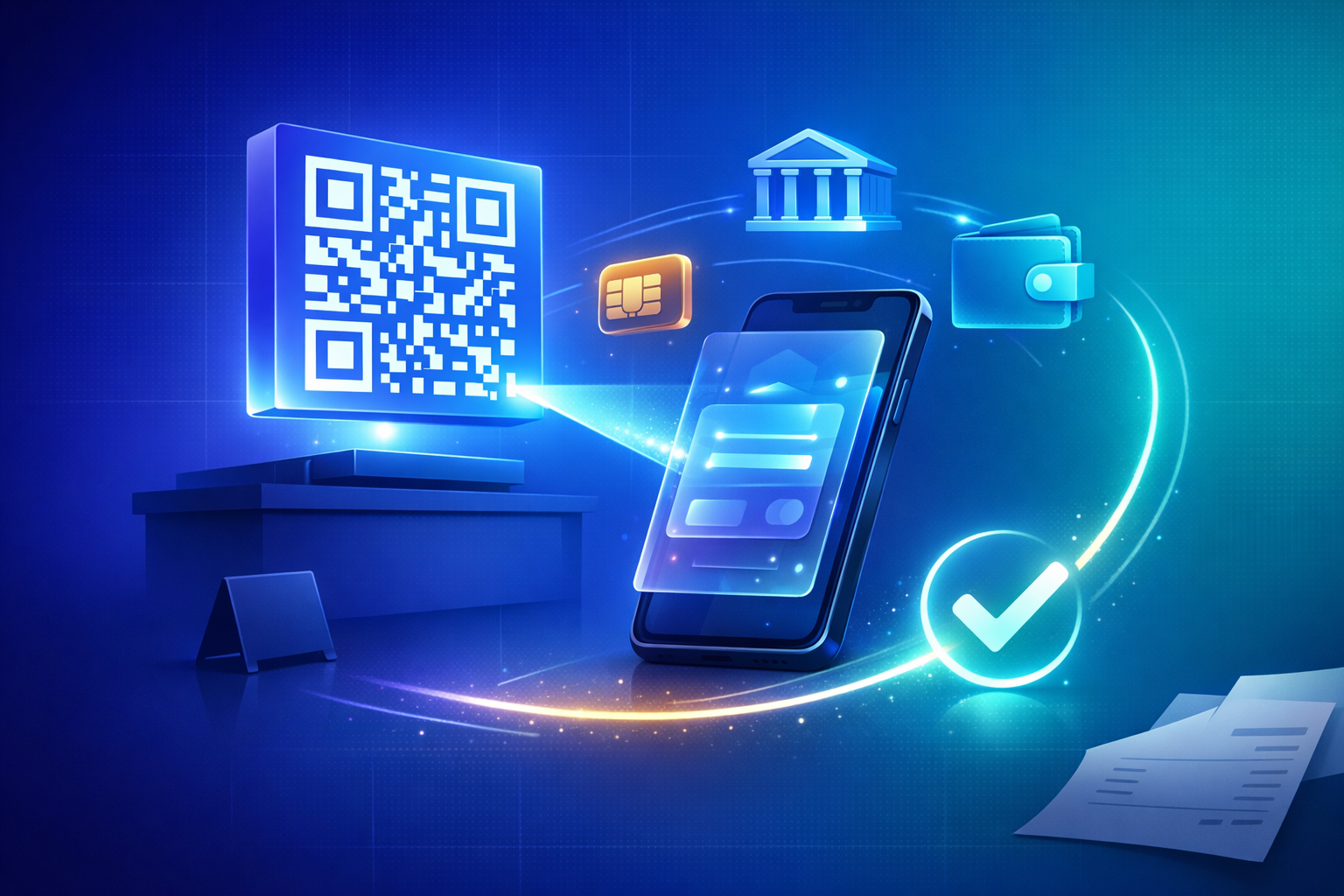
A QR code payment page lets a customer move from a printed sign, invoice, menu or business card to an online checkout with one scan. Instead of typing bank details or a long payment URL, the customer points a phone camera at the code, checks the business and amount, chooses a payment method and pays.
The QR code itself does not process money. It opens the payment page that does. That distinction matters because a good business setup needs more than a black-and-white square: it needs a trustworthy destination, the right amount options, multiple payment methods, a clear confirmation and protection against replaced or misleading codes.
This guide explains how to create a reusable QR code payment page for your business, when to use fixed or flexible amounts and how to make the complete scan-to-payment flow safe and easy to test.
Key Takeaways
- A payment QR code should open a secure hosted payment page, not expose raw account details
- Use one permanent page URL when you want to update products, amounts or branding without reprinting the code
- Choose products, preset amounts, an open amount or donation mode based on the payment job
- One PayRequest page can offer PayPal, cards, local bank methods and crypto through connected providers
- Display your business name and destination domain beside every printed QR code
- Test the scan, checkout, payment and confirmation before distributing the code
What Is a QR Code Payment Page?
A QR code payment page is a mobile checkout reached by scanning a QR code. The code usually contains a secure HTTPS URL. That URL opens a page showing the seller, payment purpose, price or amount choices and available payment methods.
This approach is different from a QR code that contains only bank-account data. A hosted page can present more context, let customers choose a method and record the order or payment reference in one system.
With PayRequest, the destination can be a branded URL such as payrequest.me/yourname. You can change products, suggested amounts, colors or connected methods later while keeping the same page URL and printed code.
Static vs Dynamic Payment QR Codes
The terms static and dynamic are often used inconsistently. For a business, focus on what changes behind the code.
A reusable code contains one permanent payment-page URL. The page can show products, several suggested amounts or an open amount. This is useful for a counter sign, business card, tip jar, market stall or general payment poster.
The code does not need reprinting when you update the hosted page without changing its URL.
A transaction-specific code opens a unique payment request with a fixed amount, customer or reference. It is useful for invoices, table orders, deposits and situations where every payment must match a particular record.
Do not use one reusable open-amount page when the business needs an exact invoice number or order total. Generate a request for that transaction instead.
Step 1: Choose What the Customer Pays For
Start with the job, not the QR graphic. Decide what should appear after the scan:
- One fixed product or service
- A small catalog of products
- Three to five suggested payment amounts
- An open amount entered by the customer
- A donation goal with progress
- A specific invoice or deposit
The first screen should make the next action obvious. A restaurant collecting one table total needs a different flow from a musician displaying a reusable tip code.
PayRequest supports product, amount-button and donation payment-page modes, while specific customer payments can use individual payment requests.
Step 2: Create the Hosted Payment Page
Build the destination page before generating the code. Add:
- Business name and logo
- A short explanation of what can be paid
- Products, fixed price or amount buttons
- Currency
- Connected payment providers
- Contact or support details
- A clear confirmation message
Keep the page mobile-first because nearly every QR scan opens on a phone. Avoid long paragraphs above the amount and payment controls.
Step 3: Connect the Right Payment Methods
The value of a hosted page is that the QR code does not have to belong to one wallet or bank. The customer can scan once and choose a method.
Depending on the providers connected to PayRequest and the customer's market, the page can offer:
- Credit and debit cards
- PayPal
- Apple Pay and Google Pay
- iDEAL
- Bancontact
- SEPA
- Klarna
- Crypto and supported wallets
Only show methods relevant to your audience. A local market stall and an international online consultant will need different combinations.
Step 4: Generate and Download the QR Code
Generate the code from the final live page URL. Use a high-resolution image suitable for print and keep enough white space around the code so cameras can recognize it.
Do not stretch, crop or recolor the functional blocks. If you place the code in a branded sign, keep the design around it rather than covering the code itself.
Add visible context next to it:
- Your business or trading name
- A direct instruction such as "Scan to pay"
- The destination domain, such as payrequest.me/yourname
- The product, table, invoice or tip purpose when relevant
This context helps customers recognize a replaced or suspicious code.
Step 5: Test the Scan-to-Payment Flow
Test with more than one phone and camera application. A code that scans from a desktop monitor may still fail when printed small or displayed under glare.
Verify:
- The code opens the correct HTTPS domain
- The business name and logo are immediately visible
- The correct products, currency and amounts appear
- Payment methods load on mobile
- The page does not require unnecessary account creation
- A successful payment shows a useful confirmation
- The business receives the correct order or payment record
- A cancelled payment does not appear paid
Print one real sample at the intended size before ordering signs, menus or cards in bulk.
Where Businesses Use Payment QR Codes
Place a transaction-specific QR code near the total and due date. The scan should open the exact amount and reference so the payment can be matched automatically.
Use a reusable page with products or common amounts. Display the business name and keep the sign where staff can inspect it for replacement stickers.
Link to the correct bill or payment page rather than one generic amount field when table reconciliation matters.
Use donation mode with suggested amounts, an open field and a live goal. The same code can appear on screens, posters and handouts.
Use a permanent payrequest.me page so the card stays useful when products or prices change. The page can also show social links and contact context.
Add your payrequest.me page as a digital card in Apple Wallet so the payment QR is ready from your phone without searching for an image or dashboard.
Are QR Code Payments Safe?
QR codes hide their destination until a phone reads them, so customers need enough context to verify what opens. The checkout itself should use HTTPS and show the expected business identity before asking for payment details.
For printed codes:
- Inspect signs regularly for stickers placed over the original code
- Print the destination domain beside the code
- Avoid sharing a code with no business name or payment purpose
- Keep customer-facing signs in visible locations
- Replace damaged or low-contrast prints
- Ask staff to recognize the correct destination page
Customers should stop if the scanned page shows a different business, an unexpected domain or a request for credentials unrelated to payment.
QR Payment Page vs Card Terminal
| QR payment page | Card terminal |
|---|---|
| Customer uses their own phone | Business provides payment hardware |
| Works through a URL and online providers | Processes through the terminal provider |
| Easy to place on print and screens | Best for staffed face-to-face checkout |
| Can offer products, open amounts and donations | Usually starts from an amount entered by staff |
| Requires internet on the customer's phone | Terminal needs its configured connection |
Many businesses use both. A terminal is efficient at a staffed counter; a QR page works well on invoices, unattended signs, events and materials customers scan later.
How Much Does a QR Payment Page Cost?
PayRequest includes the page, QR sharing, branding, products and amount modes on the Free plan. PayRequest charges 2% per successful payment, capped at EUR 25, on top of the processing rate from the provider the customer chooses.
There is no separate PayRequest charge for printing or sharing the same page QR code. Review PayRequest pricing and provider rates before deciding which methods to enable.
Frequently Asked Questions
Yes. Link it to a fixed product or transaction-specific payment request. Use an open or preset-amount page only when the customer should choose the value.
Yes, when the code points to a permanent hosted page whose configuration can change without changing the URL. For an order-specific code, generate a new request when the transaction changes.
Usually not. Modern phone cameras open the URL in a browser, where the customer chooses an available payment method. A wallet app may open later if that method requires it.
Yes. The code opens a method-selection page. Connect PayPal alongside Stripe or Mollie so eligible PayPal, card and local methods appear together.
There is no universal minimum because scanning depends on print quality, distance and camera conditions. Test the exact physical size and leave a clear margin around the code.
Create Your Business Payment QR Code
Build the payment destination first, choose the right page mode and methods, then generate and test the code. A clear branded page turns a QR square into a payment experience customers can understand and trust.
Create your payment page or claim payrequest.me/yourname, then use the same QR on invoices, signs, menus and cards.