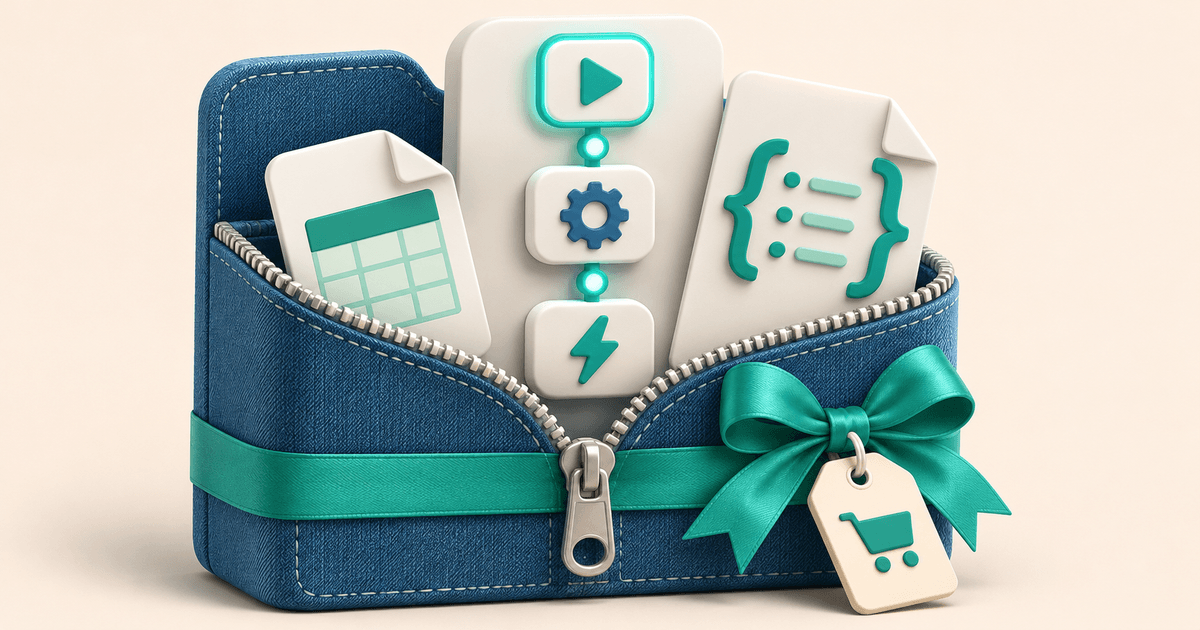
To sell an n8n workflow as a ZIP file, bundle the JSON export with a setup guide and sample input. Import it in a fresh workspace before publishing. Customers buy the ZIP through your product page, extract it, and import the JSON into their own n8n workspace.
What belongs in a paid n8n workflow bundle?
Imagine selling a two-step lead intake template. One workflow cleans up a sample enquiry and calls a second workflow that prepares a row for a spreadsheet. Give the buyer enough material to check both parts before connecting their real accounts.
| File | What the buyer does with it |
|---|---|
| 01-format-lead.json | Imports the helper workflow first |
| 02-capture-lead.json | Imports the main workflow and selects the imported helper |
| README.pdf | Checks the tested n8n version, dependencies, import order and expected output |
| sample-lead.json | Runs a test with a fictional enquiry |
| LICENSE.txt | Checks permitted use and redistribution terms |
Use an archive name such as lead-intake-n8n-v1.zip. In the README, name the n8n version and environment you actually tested, list any community nodes, and state which app accounts or API keys the buyer must supply. On your product page, say whether the buyer receives only the files or also gets setup help.
Clean the export before you sell it
n8n exports workflows as JSON. The export can include credential names and IDs. HTTP Request nodes can also contain authentication headers if a request was imported from cURL. Review the exported JSON for those fields, hardcoded keys, live URLs, real customer records and pinned production samples. Replace example data with fictional data and tell buyers where to connect their own credentials. n8n’s export and import documentation
Test the archive as a buyer
Extract the exact ZIP you will upload. Import the files in the order written in your README. Where the main flow calls a helper, reselect the helper in the target workspace and save. Start with a manual test and an empty test sheet so you can see the result before enabling a schedule or webhook.
For the lead intake example, provide a sample named Sample Buyer with the address [email protected]. Write down the expected result in the README. A successful run creates one row with those values in the test sheet. If there is no row, check the spreadsheet credential and sheet selection first. If the helper fails to start, verify that the main workflow points to the imported helper. This gives buyers a check they can repeat without giving you access to their accounts.
Sell the ZIP and deliver it after payment
In PayRequest, create a digital product, add the ZIP as the delivery file, set the price and connect an eligible payment provider. List the included workflows and setup requirements on the hosted product page. Share the product link in your documentation, newsletter or social profile.
After payment is confirmed, PayRequest makes the ZIP available for download. Buyers extract and import it themselves. Before launch, complete a checkout and compare the delivered archive with the one you tested.
Sell your workflow ZIP with PayRequest or follow the ZIP paywall checklist to verify what a buyer sees before and after checkout.