To set up paid Discord roles with PayRequest, connect a server you own, install the shared PayRequest bot, and link an eligible paid product to a dedicated access role. After buying, the customer connects their Discord account and joins your server. PayRequest checks the purchase before granting the role.
This walkthrough is for server owners who have chosen their offer and now need the payment-to-role setup. For the broader no-website selling workflow, read selling Discord access without a website. The Discord Memberships feature explains the available access models.
Prepare a role that only unlocks paid channels
Create a dedicated role such as Community member in Discord. Give it access to the private channels included in the offer. Keep administrator, moderation and staff permissions separate: PayRequest rejects administrative or otherwise unmanageable roles.
A role is the key; the channel permissions define which doors it opens. PayRequest does not change those permissions, select a channel for a customer, or moderate your community. Review your private channels before connecting checkout.
An important boundary: PayRequest only removes roles it has claimed responsibility for granting. If a buyer already had the role, that existing assignment is retained. A new dedicated role makes paid access easier to reason about than reusing an old manually assigned role.
Install the shared bot and save the server
Open Services & integrations → Discord Memberships → Install Discord bot. Select your server and approve the account connection and Manage Roles permission. Move the bot's role above every membership role it needs to manage.
You do not need your own Discord application, bot token or client secret. If you installed the bot separately, use Connect Discord account, select the server and then Save server. Installing the bot alone does not save your business connection.
One PayRequest business connects one Discord server. That server cannot also be connected to a different PayRequest business. You must own the server; having a staff role is insufficient.
Add an invitation to the connected server. PayRequest checks the destination. Existing members can open the server directly, but new buyers need a valid invitation. Replace expired or revoked invitations before promoting the offer.
Create the membership product and connect its role
With an active server connection, open Products → New product → Discord Membership. Choose a one-time access pass or a subscription, enter the details, and save. PayRequest opens Discord Memberships with that product selected so you can choose its access role.
You can also connect an existing eligible product, but only purchases created after connection qualify. Use a service product for one-time access or a native PayRequest subscription product for recurring access. Set a positive price and one unit. Recurring interval count must be one: daily, weekly, monthly or yearly.
Free trials, provider-managed subscriptions and products with another automatic delivery integration are unsupported in this version. A standalone open-amount payment link does not grant a role. Existing purchases are not imported automatically.
Choose your dedicated role, or use Create membership role to create one without extra permissions. Configure the private channels in Discord. For a one-time pass, choose 1–3,650 days or Unlimited access, then confirm that you checked the channels the role unlocks.
Use this launch acceptance checklist
This is a proposed rehearsal, not a report of a live purchase test. Run it with your own server before inviting customers.
| Check | Expected outcome | If it fails |
|---|---|---|
| Setup status | Account, bot, permissions, saved server and product are checked | Verify the selected server and save it |
| Bot hierarchy | Bot role sits above the paid role | Move the bot role in Discord |
| New buyer joins | Valid invitation opens the correct server | Replace the invitation in Setup |
| Paid buyer connects | Customer uses their purchase email and own Discord account | Return to the seller's Discord access tab |
| Channel visibility | Paid role unlocks exactly the promised channels | Review channel permissions in Discord |
| Unpaid or expired access | No current entitlement grants managed access | Check payment and paid period |
The setup checklist refreshes about every 15 seconds while visible and checks again when you return. “Not checked yet” can mean the account connection or server selection is still missing. It is not proof that the bot is broken.
Give customers the correct access route
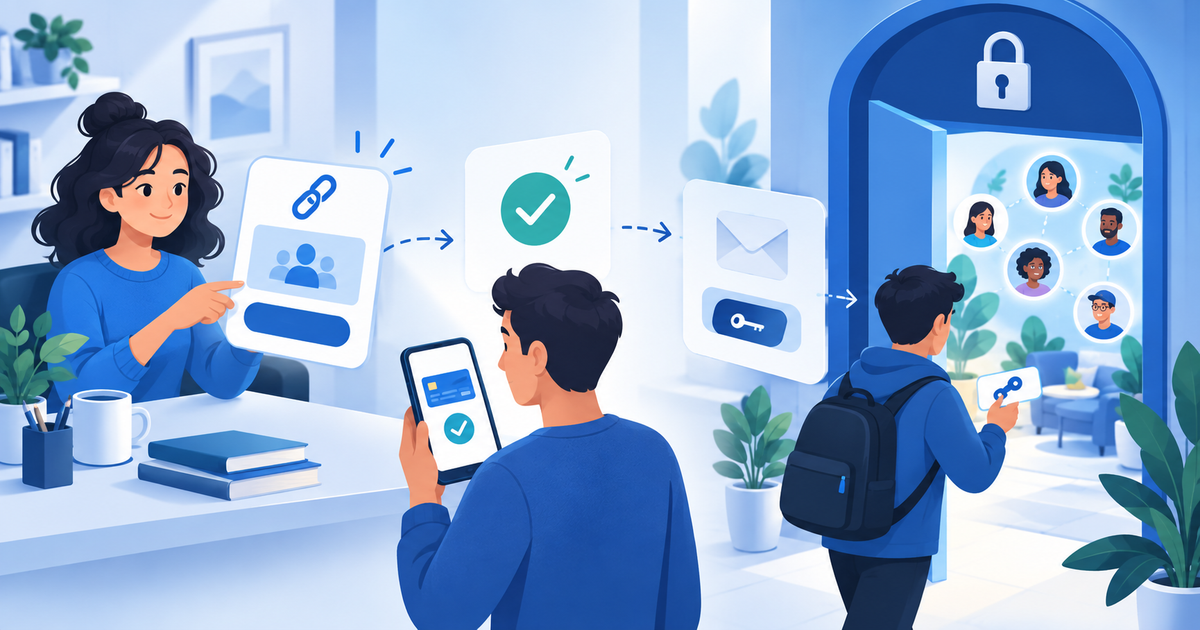
A shop is not required. After payment, Continue to Discord opens the Discord access tab on your Payment Page, at `payrequest.me/{page-handle}/discord/access`. Customers sign in with the email used for the purchase, connect their own Discord account, join through your invitation and accept any server rules.
Access checking starts automatically and watches for changes for about 30 seconds. Check Discord access remains available to retry. Payment confirmations and completion emails include the role, duration and a return link. Even custom-domain purchases use this payrequest.me access page.
Tell customers to open email login and Discord sign-in in the same browser. Email login links are single-use, last one hour, and a new request replaces the previous link. A wrong Discord account cannot be switched automatically; contact support. Delegated contacts and merchant impersonation sessions cannot claim access.
Diagnose access before changing billing
Start in Customer access. Recent buyers include people who have not connected Discord yet. A fresh check queues a payment/access review; it neither charges a customer nor grants unpaid access.
“Join the Discord server” calls for the invitation; “Complete the Discord server rules” calls for accepting rules in Discord. “No current paid access” calls for checking product, payment, period and effective cancellation date. “Discord access needs attention” calls for checking ownership, bot permissions and hierarchy.
Relevant payment/subscription changes trigger checks, with a five-minute recovery schedule. Busy queues and Discord rate limits can add delay, so do not promise always-instant role delivery. After a 429 response, wait about a minute before retrying.
Ready to connect your first offer? Open the Discord Memberships feature, create your account and follow the setup checklist with one dedicated role. Keep the official Discord Memberships documentation nearby for current limits and troubleshooting.
*Prepared with AI assistance from the first-party product documentation on 1 November 2026. The launch checklist is an original proposed acceptance process; no live customer test or delivery-time guarantee is claimed.*