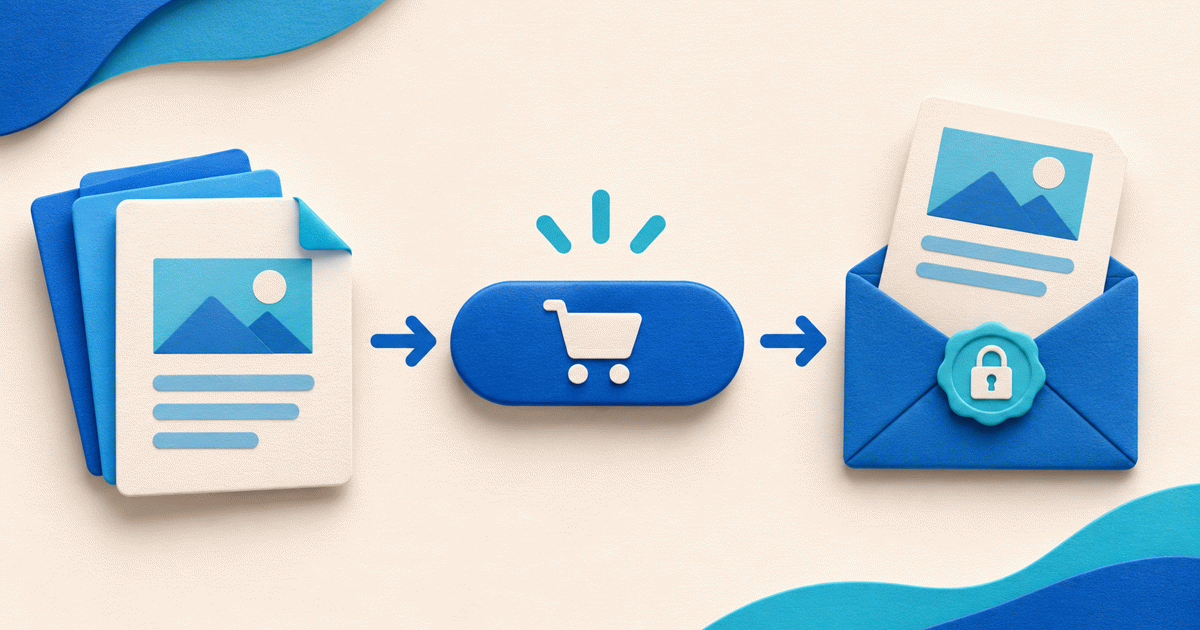
You can sell a PDF from WordPress without WooCommerce by linking a normal Button block to a hosted digital-product checkout. Keep your article or sales page in WordPress, store the paid PDF with the delivery service and let confirmed payment unlock the buyer's delivery link. You do not need to turn a one-document offer into a full store.
This approach fits a blogger with a paid travel guide, a consultant with a workbook or a publisher with a single issue. If you need a WordPress shopping cart, synchronized stock or member-only WordPress pages, a native commerce or membership setup may be a better fit. An external checkout does not create those integrations.
Keep the public page and paid file separate
Your WordPress page should explain the offer: title, intended reader, edition, price and exactly what is delivered. A public cover and a short sample help a buyer decide. The paid document itself should not be the destination of the button.
Uploading the complete PDF to public WordPress media and placing its URL behind an ordinary button does not establish purchase authorization. A visitor who receives that URL may be able to bypass checkout. A payment receipt is also not a private file-delivery system.
| Item | Where it belongs | Purpose |
|---|---|---|
| Sales description and cover | Public WordPress page | Explain the product before purchase |
| Buy button destination | Specific hosted product checkout | Bind the offer to its configured price and file |
| Original paid PDF | Private delivery storage | Serve through the purchased access route |
| Free sample | Clearly labeled public link | Show only what you intend to give away |
Create one PDF product in PayRequest
Create an account, complete setup and connect a provider eligible for your business and country. In Products, choose Sell a workbook / PDF, upload the finished PDF, confirm its name and set the total customer price. Check the currency and included tax rate before creating the payment link.
The quick flow accepts one PDF up to 500 MB. For a multi-file ZIP or other delivery format, use the full digital-product setup. Suitable single PDFs without a custom image or gallery can get a cover generated from their first page. That separate renderer has a 100 MB source limit; a manual image remains useful for larger or unsuitable files. Page one becomes public preview material, so choose it deliberately.
Copy the link for this specific product. Do not substitute a generic donation or amount link: it would not describe the same purchase and deliverable.
Add the WordPress button without a commerce plug-in
In the WordPress editor, add a Buttons block, select its button, enter an informative label and paste the product checkout link into its link control. Save or update the page, then check the published version. The official WordPress Buttons block guide documents the link and styling controls.
For a fictional €12 workbook, a clear label is “Buy the planning workbook — €12”. Nearby copy can say “PDF delivered after confirmed payment; checkout opens with PayRequest.” Use your real price and currency, and describe a ZIP as a ZIP. An external link button does not require a custom-code embed or payment plug-in.
If your editor differs, use its ordinary external-link button. Do not paste the PDF's delivery URL, a buyer-specific download link or a provider secret into WordPress.
Give the buyer a clear route back to the file
After confirmed payment, PayRequest makes the protected delivery link available through its supported confirmation, email and customer-account routes. Eligible single PDFs also offer Read edition, which opens the PDF in the browser viewer when supported, alongside Download.
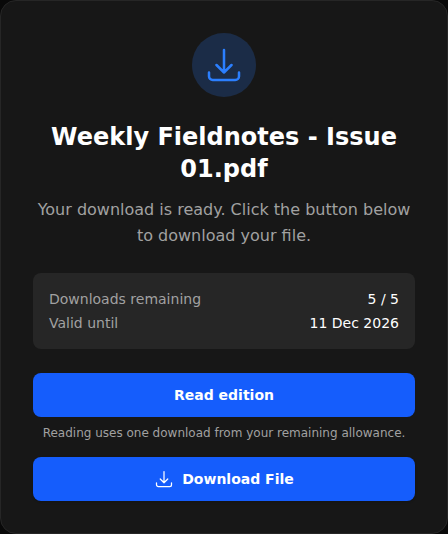
The screenshot uses fictional data, not a WordPress customer purchase. Opening Read edition uses one existing download allowance. The quick PDF flow currently creates five downloads within 30 days; review the product settings and explain support for expired links. A browser reader does not prevent a buyer from saving or sharing the purchased bytes.
This route does not create a WordPress user, WooCommerce order or membership entitlement. Your WordPress site presents the offer; PayRequest manages this product's checkout and supported delivery.
Run the four-link launch check
Download the WordPress PDF launch checklist. It uses a fictional workbook and has no customer records, macros or payment credentials.
Check the published page on mobile and desktop: the Buy button must open the intended product, the public sample must remain clearly free, the paid original must not be linked publicly and the support address must work. Preview navigation and files without creating a real payment; confirm paid delivery through an agreed test arrangement before a commercial launch.
Keep a copy of the approved file, filename and version. Replacing a product's file can change what existing links deliver; a later newspaper issue should be a separate product rather than silently replacing the earlier purchase.
Know what you are paying for
Digital products are available on PayRequest Free with a 2% standard platform fee capped at €25 per transaction. Active Premium (€5/month) and Business (€20/month) remove the standard platform fee; provider fees and commission exceptions remain separate. Review current pricing rather than treating an off-site button as a zero-cost sale.
For one finished PDF, your next step is one working product and one published button. For a wider comparison of delivery choices, use the PDF-selling guide.
Editorial note: sources and current PayRequest implementation reviewed on 13 November 2026. The launch checklist and screenshot data are fictional; no WordPress checkout, customer sale or conversion result was tested. AI assisted with the article and illustrative cover.