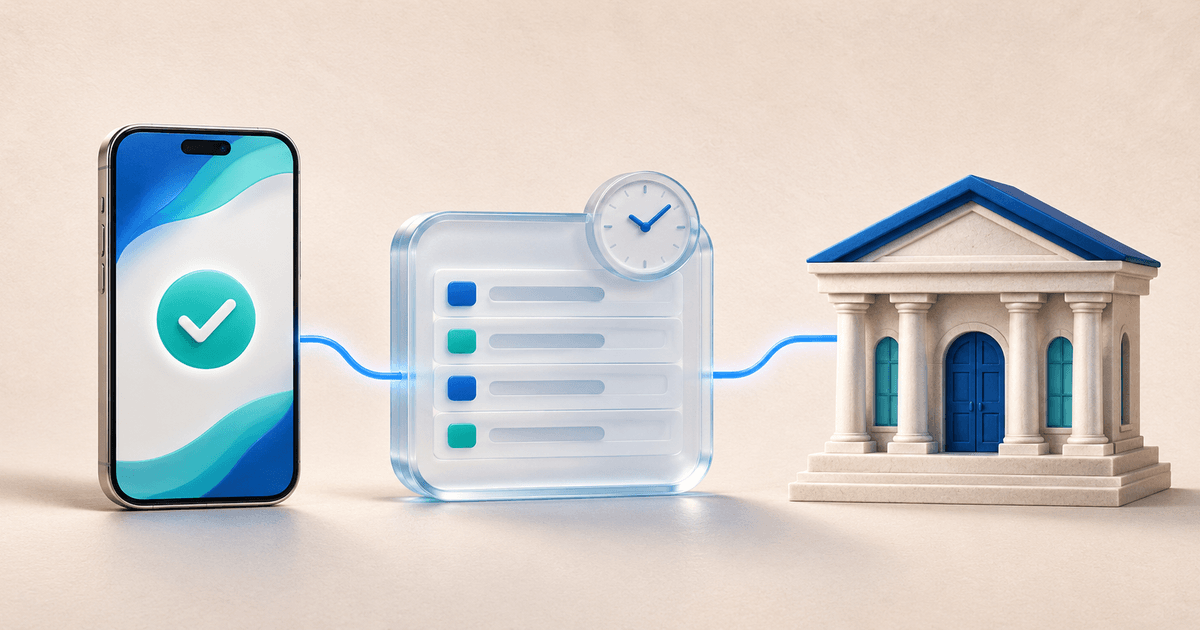
To get paid into your bank account from a payment link, connect a supported payment provider to PayRequest and set up your bank account with that provider. Your customer pays through the link. The provider processes the payment and sends the available funds to your bank through its payout or withdrawal process.
Set up the link and the payout destination
- Choose the checkout method. Start with what your customers can use, such as cards or a supported bank payment method. Check which methods your provider offers for your country, currency and account.
- Set up your bank account with the provider. Complete the provider’s verification and confirm the destination bank account, payout currency and schedule. If you choose PayPal, check the transfer options for your market and account.
- Create a fixed-amount link in PayRequest. Connect your provider, enter the amount and currency, and give the link a description your customer will recognize, such as “Design review · Invoice 1042.” Preview the checkout before you send it.
- Check both records after payment. Confirm that the payment succeeded in PayRequest, then find the transaction and its payout or transfer status at your provider. Match the completed payout to your bank statement.
Where to look for the money
| Provider | Where to check |
|---|---|
| Stripe | Check your Stripe balance and the payout schedule for the linked bank account. Funds can take time to become available before the schedule applies. Stripe payouts |
| Mollie | Check settlements and match the settlement reference to your bank statement. A settlement can contain several payments, fees and other deductions. Mollie settlement report |
| PayPal | Check the activity and available balance in PayPal. Where eligible, transfer available funds to your linked bank account. Confirm the options and timing for your market. PayPal withdrawals |
Follow a €120 payment from checkout to bank
Suppose a customer pays invoice 1042 for €120 by card. The successful payment appears in PayRequest. Next, look up that €120 transaction in the provider dashboard and check when the funds become available and which payout includes them.
If the provider groups this payment with others, the deposit on your bank statement may have a different total. Match the payout reference first, then look up invoice 1042’s payment in the payout details. Check any fees, refunds or adjustments before treating a difference as a missing payment. On PayRequest Free, the standard platform fee on €120 is €2.40. Provider fees are separate, and the bank deposit alone may not show every cost. PayRequest pricing
When the customer wants to pay from their bank
Enable a bank payment method your provider offers for that checkout. The customer’s payment method determines how they pay. The payout settings in your provider account determine where your proceeds go. A card payment can also be paid out to your bank account. For a personal reimbursement, check whether your bank app has its own payment request feature. Personal payment links
If the payment is marked paid but the bank account is empty
Open the provider dashboard and work through the records in order. If the payment is still pending, check the transaction status. If the funds are available, look for the next payout or a withdrawal option. If the payout was sent, check its reference, destination and expected arrival date. If it failed, follow the provider’s instructions for that payout before asking the customer to pay again.
Start by setting up the payout destination with your provider, then create your customer payment link.
*Editorial note. AI assisted with drafting and the cover illustration. The €120 invoice is a worked example.*