A useful form does more than collect a name: it tells the customer what they are paying for and tells you what to do next. This guide uses an illustrative scenario and the current PayRequest Payment Forms workflow; all example prices are hypothetical.
Start with a clear paid outcome
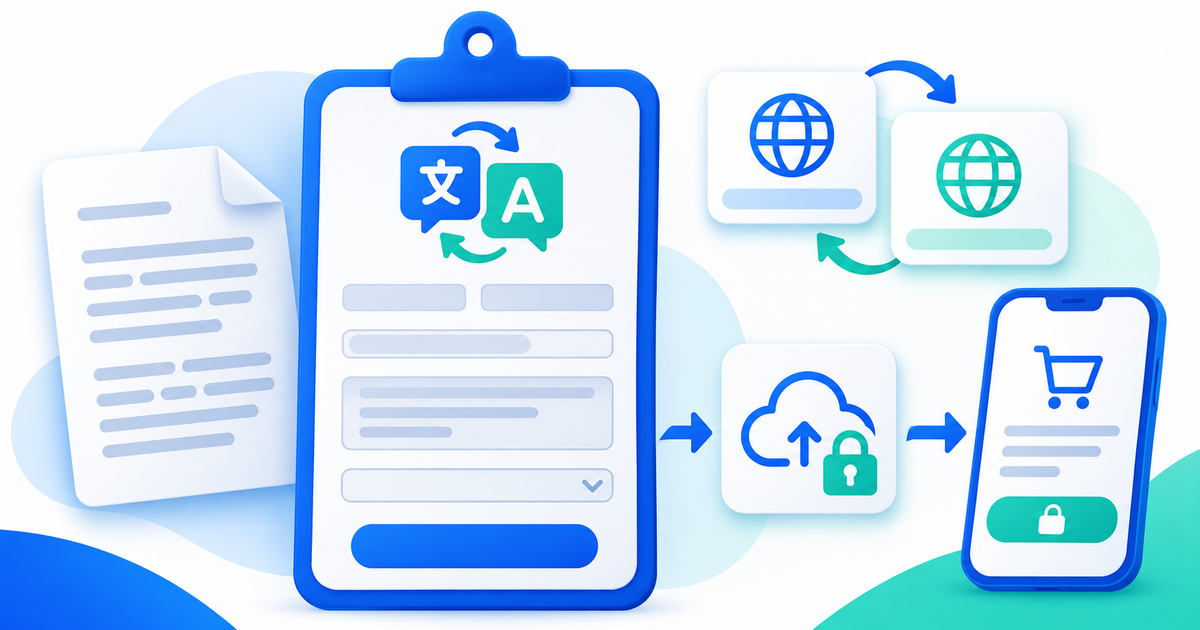
Ask for source and target languages, intended use, deadline and a source document. Review the file and agree on the translation price before work starts.
Before you share the form, rewrite the example in your own terms: who the offer is for, exactly what the customer receives, what is excluded and what happens after checkout. These distinctions reduce avoidable follow-up and keep the payment amount tied to a defined offer.
Ask for the details you will actually use
A short field list is easier to complete and easier to review than a long intake. For this template, start with:
- Source language: Identify the language pair before assessing the work.
- Target language: Identify the language pair before assessing the work.
- Document to translate: Use a supported private upload to review the supplied reference.
- Instructions: Collect context that helps you prepare or follow up.
Use conditional questions when a follow-up is relevant only after a particular answer. A hidden conditional question is not required and its paid option is not charged. For customer documents, uploads are private and downloaded by the account owner from submissions; they are not public file links or email attachments.
Set the price and explain what it covers
Choose Fixed amount for a seller-set base price, or Existing products when the form should offer compatible active one-time products. Paid question options add fixed amounts; the form does not calculate a custom quote from a written answer. Review the tax settings and the total shown at checkout.
If you add a paid extra, name the extra and its fixed amount in the option label. Preview the full total before publishing so customers can see the price they are agreeing to.
Publish, then check the payment status
Save a draft to review privately. Publishing requires an active Payment Page and an eligible connected provider for the form currency. After sharing the link, check the submission status: answers, a customer record or a return from checkout do not prove that payment is confirmed. When a payment is pending or uncertain, wait for the provider status and ask the customer not to pay again while it is checked. After confirmed payment, complete any manual scheduling, approval, quoting, file review or service delivery that your offer requires.
The available methods depend on the connected provider, account, currency and amount. PayPal is optional; eligible forms may use PayPal, Mollie, Stripe, Revolut or Payoneer connections. See the Payment Forms guide for current field, upload, pricing and availability details.
Know when to follow up manually
No. It collects the information and payment you configure, but you must review the document and agree on a price. Follow up with the customer to confirm the next step.
Choose one offer and state its boundary. Put the date, format, what is included and any manual confirmation step in the description. If the customer is paying only for an assessment or discovery call, name that step instead of implying that the full custom service is included. Add only questions that change preparation or fulfillment. Use required fields for essential contact and scope details; keep sensitive or optional background questions optional. For a private reference file, explain the supported file types and upload limits before the customer selects a file.