To sell printable planners online, create a buyer-ready PDF, test its print settings and digital usability, then connect the exact version to a paid download. A planner listing should tell buyers whether it is printable, tablet-friendly or both; which sizes are included; whether it is dated; and what licence applies.
The useful distinction is between a printable PDF and a hyperlinked digital planner. A printable file must survive printing at the advertised paper sizes. A tablet planner must have working navigation in the apps you name. Do not describe a PDF as “universal” when you have only checked one printer or one note-taking app.
Prepare one release package
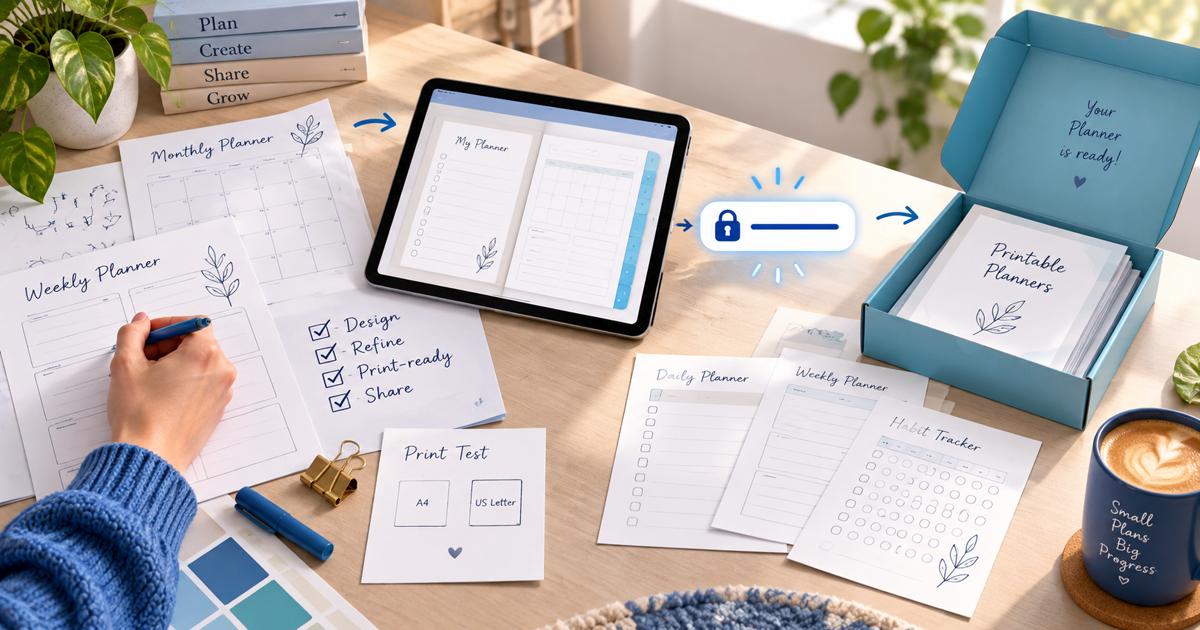
Include a start-here page, the planner PDF, a short print guide and the licence. If you sell A4 and US Letter editions, label them clearly instead of asking the buyer to scale one file. For a dated planner, include the year in the filename and keep the previous release identifiable. For an undated planner, say so in the title and preview.
| Release check | What to test | What to tell the buyer |
|---|---|---|
| Page size | A4, US Letter or other included sizes | Exact files and dimensions |
| Print scale | Test square or known measurement | Print at 100% or explain scaling |
| Readability | Smallest text and line weight | Home-printer limitations |
| Navigation | Tabs and hyperlinks in named apps | Supported use, not every app |
| File identity | Version, date and included pages | What the download contains |
| Licence | Personal, classroom or commercial use | Sharing and resale rules |
Print one representative page at 100% and inspect the margins, crop marks and smallest text. Open the digital version on a clean device and tap every navigation tab if you sell a hyperlinked edition. These checks are your release evidence; they are not a guarantee for every printer, operating system or app.
Price the outcome and make the preview honest
Show a few real pages and one filled-in example without giving away the full product. A bundle can include daily, weekly, monthly, budget or fitness pages, but explain the count and format. If the buyer receives an editable Canva link, that is a different deliverable from a flattened PDF and needs its own access and licence instructions.
PayRequest can deliver a digital product after a successful payment. Create the product, attach the approved PDF or archive, set the currency and open the public checkout in a private browser. Make one authorized test of the payment-to-download path before promoting the link. PayRequest's current printable planner product page shows the intended product family, while digital products is the closest setup destination.
Market with one clear promise
Choose one buyer problem for each listing: weekly planning for students, a printable wedding kit, a budget workbook or a fitness tracker. Put the paper sizes and whether the file is dated near the first call to action. A direct link can sit in a social bio, newsletter, portfolio or pin; the channel creates discovery, while the product page explains the download.
Launch one tested planner before building a large shop. Record the version, included files, print test and support answer in a small release log. Then use the same checklist for each new bundle. Create a PayRequest account when the PDF, price and delivery package are ready.
Editorial note: AI assisted with this article and its illustrative cover. The release matrix and testing workflow are original planning tools; no customer sales result or printer compatibility guarantee is claimed.