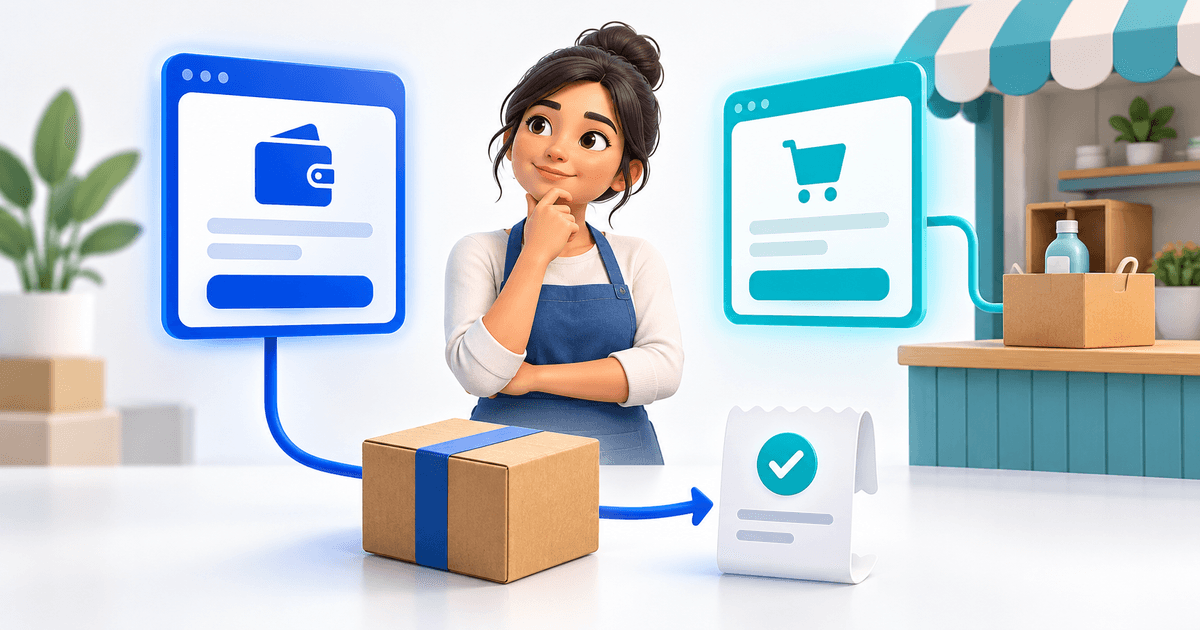
To sell digital downloads on a Canva website, put the product preview and buying button on Canva, then link that button to a PayRequest digital product with the delivery file attached. The customer follows the link, pays and receives access through the order's download route. Keep the paid file out of the public Canva page.
This guide focuses on the part that a simple payment button does not solve: delivering exactly what you promised. It applies to PDFs, ebooks, printable packs, audio files and ZIP packages promoted through a Canva website. The file does not need to have been created in Canva; Canva can simply be the storefront where you present it.
The central rule is to keep three things connected: the public offer, the paid product and the delivery file. A correct payment amount cannot compensate for the wrong attachment. An attractive preview cannot tell you whether the downloaded file opens. Treat those as separate checks before promoting the offer.
Plan the Canva Offer and Its Delivery File Together
Start by writing one sentence that describes the purchase: “A printable PDF workbook delivered as one download” or “A ZIP containing twelve image files and a getting-started guide.” This is more useful than “digital bundle” because it tells both the buyer and the person configuring the product what must arrive.
Show a preview, the included contents, the file format and any necessary software on Canva. Explain whether the buyer receives an editable source file or a finished document. A PDF exported from a design is different from a Canva template link that lets the buyer make an editable copy.
If you are selling editable Canva designs, the existing Canva template-selling guide covers packaging the template access link. Keep that access link inside the purchased delivery document instead of publishing it next to the buy button. This article addresses selling from a Canva website, including products created in other tools.
Build a Package a New Customer Can Open
Deliver the simplest format that fulfills the offer. A single workbook may only need a PDF. A product with several files is easier to keep together as a clearly named ZIP with a short starting document. Avoid including drafts, duplicate exports or internal working notes simply because they happen to be in the source folder.
For a fictional printable pack, prepare Studio-Planner-v1.zip containing Planner.pdf, Printing-Instructions.pdf and Terms-of-Use.pdf. The instructions should identify paper size, whether the pages are intended for printing and how to contact the seller. Use the actual contents and compatibility checks for your product; these example filenames are a packaging model.
Open the final package from a fresh folder before uploading it. Check that every promised page or file is present, that the file is not password-protected unexpectedly and that links in supporting documents lead to the intended resource. Keep the approved release separately so later edits do not make it impossible to identify what was sold.
Create the PayRequest Digital Product
Use PayRequest digital products to create the offer and attach the approved file. Set the name, description, amount and currency so they match your Canva page. The current upload allowlist includes PDF, ZIP, EPUB, MP3, WAV and FLAC, among other formats. An allowed extension still needs a valid file and a successful upload.
Check the completed product before copying its public link. The current product model attaches a delivery file to the product, so a ZIP is a straightforward way to package several related files as one deliverable. Review the resulting public product page as a customer, including the image, edition and amount.
In file delivery, review the download allowance and expiry that you intend to offer. The current implementation creates order-specific download tokens with an expiry and allowance from the product configuration. Tell the buyer the terms that apply to your product, rather than copying a fixed number from another seller's page.
Connect the Product to Your Canva Website
Add the public PayRequest product URL to the matching Canva button or cover image. Canva's website guide explains selecting an element and adding an external URL. Publish the changes and test the public website rather than assuming that a linked element in the editor is ready for customers.
For a small catalog, use a product-specific button under each preview. “Buy the printable planner” explains more than “Select.” If the preview image is also linked, make sure it opens the same product as its button. Use a separate general catalog link only where the visitor is intentionally choosing to browse all your offers.
If you need the full linking process, follow how to accept payments on a Canva website. The same linking method works for different digital formats. What changes is the product attachment and the information the buyer needs to use it successfully.
Understand Payment Confirmation and Download Access
Your intended selling flow is payment confirmation followed by access to the purchased file. PayRequest's delivery code creates download records associated with an order and product, and the order email supports download links. Confirm that the actual configured payment flow reaches that outcome before you advertise automatic delivery.
Opening the download landing page and downloading the file are separate actions in the current implementation. Merely visiting that page does not consume a download. The download action checks expiry and allowance, records the attempt and streams the file. This distinction helps avoid treating an email security scanner's page visit as a customer download.
A download count also does not prove that a buyer opened the file successfully. A connection can fail during transfer, or the customer can have trouble extracting a valid ZIP. Ask which stage failed before changing settings: payment, email receipt, opening the download page, transferring the file or opening its contents.
Use This Paid-Delivery Test Matrix
This original matrix separates a working link from a working delivery. Fill it in for the exact release you upload. It is a launch checklist for your own records, not a claim that these scenarios have already been tested on your account or a built-in PayRequest testing feature.
| Stage | Action to check | Expected outcome |
|---|---|---|
| Public offer | Open the published Canva page on a phone | Product, format, price and button are readable |
| Product link | Follow that button in a private browser | Correct product opens without seller login |
| Unpaid visit | View the offer without purchasing | Paid file is not exposed on the public page |
| Confirmed purchase | Complete an authorized payment check | Order identifies the correct purchased product |
| Delivery | Open the buyer's order email and download route | Access leads to the promised file |
| File usability | Save and open the delivered artifact | Contents match the approved release |
| Access problem | Review your handling of expiry or used allowance | Customer receives a clear support path |
For the planner example, the final check is opening the delivered ZIP and confirming the three named PDFs. It is not enough to see a green payment status or an email in the inbox. The buyer paid for a usable package, so the review should finish where their work begins.
Record the date, product name, uploaded filename and actual result. Mark checks as pending when you have not performed them. If you change the attachment, price or destination later, repeat the affected checks. There is no need to recreate the whole Canva site to review one corrected product.
Avoid Public File Links and Misleading Download Promises
A public cloud-storage link placed on Canva gives anyone who can reach it a route to the file. A public thank-you page with the same URL can have a similar problem. Keep the purchase link public and the delivery route connected to the order instead of using a public folder as the payment gate.
Protected download access controls how the file is initially obtained. It does not prevent a buyer from copying a file after downloading it, and it should not be described as piracy-proof. Explain the intended usage terms in the product rather than promising technical protection that does not exist.
Also avoid promising “unlimited lifetime downloads” when the product has an allowance and expiry. State the actual access terms and provide a contact route for a legitimate buyer who needs help. If a download cannot be opened, ask for the order reference and error stage rather than requesting sensitive payment details.
Set a Price That Includes the Delivery Work
Consider preparation, support and payment costs when setting the offer. Current PayRequest pricing lists 2% per successful payment on the Free plan, capped at €25 per transaction, with provider fees separate. That price structure does not mean the seller receives the listed price minus only 2%; other applicable charges still matter.
For a fictional €15 planner, the platform percentage is €0.30 before provider fees and other applicable costs. The calculation helps check your assumptions, but it is not a recommendation to charge €15. Your product's usefulness, audience and support needs should guide the actual price.
Use the same amount and currency in the Canva offer and PayRequest product, and explain any additions that appear at checkout. If you later run a promotion, check the published page and destination together. A stale price on Canva can make a correctly configured checkout look wrong to the buyer.
Publish a Download Offer You Can Support
Before launch, identify who handles delivery questions and how a buyer can reach them. Keep the product name and order reference in your support process, along with the release version. When you update the product, explain whether earlier purchasers receive the update instead of leaving that expectation undefined.
Create one complete offer through PayRequest, attach the approved package and connect it to your Canva website. Work through the matrix before expanding your catalog. A small collection with clear descriptions and dependable delivery gives buyers a more understandable experience than many loosely connected links.
Editorial note: AI assisted with this article and illustrative cover. Upload formats, token configuration and download-page behavior were reviewed in PayRequest code on 11 September 2026. The planner package and test matrix are original examples. No live purchase or completed buyer-delivery test is claimed.