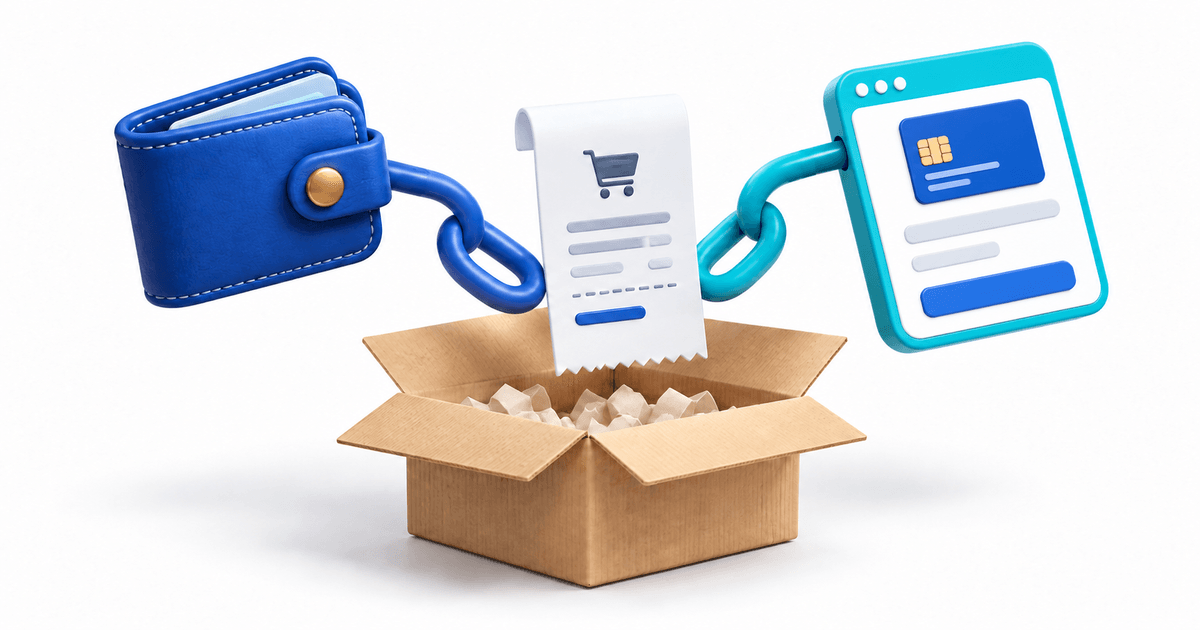
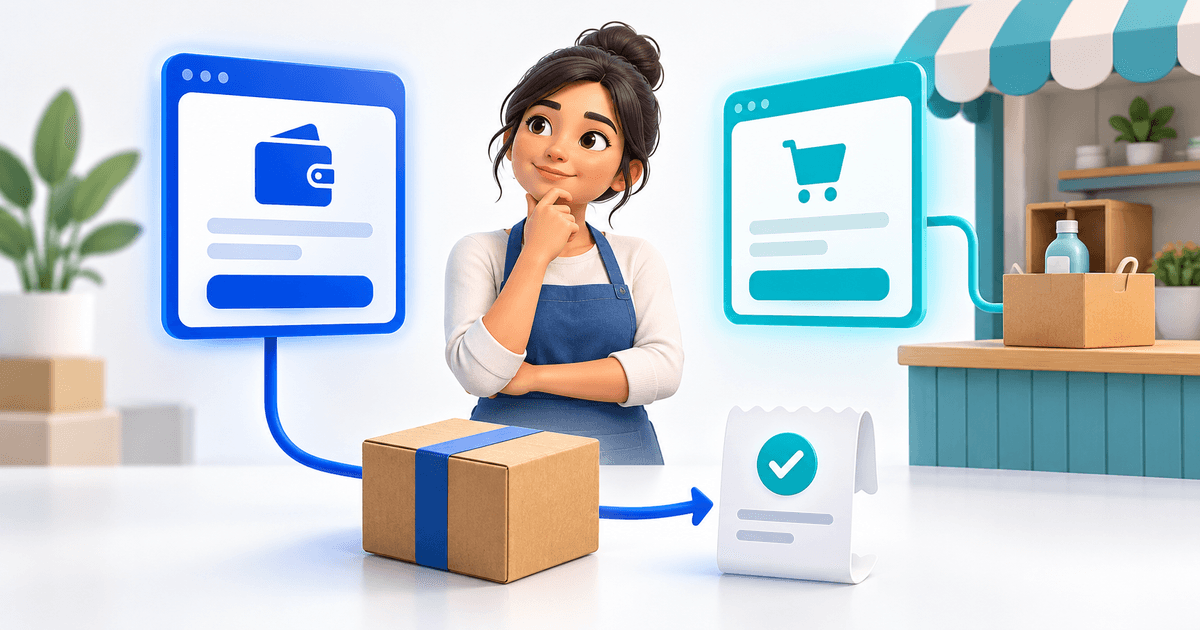
You can accept payments on a Canva website by linking a button, product image or text to a hosted checkout. Create your offer in PayRequest, copy its public product URL, add that URL to your Canva design and publish the website. Your customer browses Canva and follows the link to pay through PayRequest.
This guide is for someone who already has a Canva page and needs a practical way to sell from it. You do not need to rebuild that page to add a linked checkout. The key is making the offer on Canva match the product, amount and next step the buyer sees after clicking.
The useful distinction is between designing the storefront and operating the sale. Canva displays your offer. The linked product page handles the purchase journey. For a digital product, the delivery setup must also connect the successful order to the correct file. Start with one offer and check that entire route before duplicating buttons across your site.
What Happens When Someone Pays From a Canva Website?
The buyer starts on your published Canva website, selects an offer and opens the linked checkout. They may notice a different domain in the address bar. Explain that transition with a short line such as “Secure checkout through PayRequest” next to the button, and use a consistent seller name and product image on both pages.
Canva's own website guide describes adding an external URL to selected text or an element. That is the mechanism used here. This workflow connects two public pages through a normal hyperlink; it does not require a custom Canva app or an embedded payment form.
PayPal also has a Canva Payment Links integration. Its official guidance explains that clicking a link takes the customer to a PayPal-hosted checkout. If you already use that approach and only need payment collection, it may meet your needs. PayRequest becomes useful when you want the linked offer to include product management and a defined delivery process.
Choose the Right Destination for Each Canva Buy Button
A product-specific button should open the matching product. A general “Browse all products” button can open your catalog. These destinations serve different purposes. Sending someone who clicked a particular album to an unrelated list makes them identify the product again and creates another opportunity to choose the wrong edition.
For example, suppose your Canva page offers an album download and a separate backing-track download at the same price. Their payment amounts cannot identify them because the amounts are identical. Give each offer a distinct product name, file and public link. Keep that identity consistent from the Canva card through checkout and delivery.
PayRequest payment links support a hosted payment journey. For an offer that includes a file, configure it through digital products so the delivery belongs to the product. A standalone request for an amount is not enough to describe which digital file a buyer should receive.
Create the PayRequest Offer Before Editing Canva
Set up the product name, description, price and currency in your PayRequest account. Add an image that matches the offer shown on Canva. Connect an eligible payment provider and confirm that the account is ready to accept the kind of payment you intend to collect. Available methods depend on the provider, country and account configuration.
If you are selling a download, attach the approved file and review its delivery settings. If you are selling a service, explain what the customer must do after payment, such as sending a project brief. Do not describe a payment as a confirmed appointment unless your booking process actually reserves that time.
Copy the product's public URL from PayRequest and open it in a private browser window. The current product code creates a distinct public URL for each product. Copy the actual generated address rather than guessing a URL from the title. Check that this is a customer-facing product page and not a dashboard address that requires your login.
Add the Payment Link to Your Canva Website
Once the product page is ready, connect it to one visible buying action. Use a descriptive button such as “Buy album download” or “Book this service” instead of “Click here.” Keep the price, currency and product format close to that button so visitors can understand the offer before leaving Canva.
- Open your website design in Canva and select the button, image or text that should be clickable.
- Open the link control for the selected element and paste the public PayRequest product URL.
- Apply the link and confirm that it belongs to the intended element.
- Publish or update the Canva website.
- Open the published website as a visitor and follow the link.
The exact position of Canva's link control can vary with the selected element and editor layout. Follow the current editor controls rather than looking for a particular toolbar position shown in an old tutorial. The external URL, selected element and published result are the parts that must agree.
If the product image and the button are both clickable, give them the same destination. After duplicating a Canva card, replace its link as well as its image and wording. Duplicated cards can look correct while still sending buyers to the first product. Test each live destination separately, especially when several offers share a price.
Use This Canva Payment-Button Release Checklist
The following worksheet is an original review tool for a small Canva storefront. Copy one row per offer into your own document. It records what you intend to sell and what a visitor actually reaches; it is not a built-in PayRequest report or evidence that a test purchase has already happened.
| Check | What must match | What to record |
|---|---|---|
| Offer identity | Canva name and checkout product | Exact product name and edition |
| Destination | Image and button open the same offer | Public product URL |
| Amount | Displayed price and checkout currency | Amount, currency and any stated additions |
| Payment readiness | Intended method is available | Provider and method actually checked |
| Next step | Confirmation matches the promise | Download, service instructions or other outcome |
| Published version | Mobile and desktop reach the updated offer | Date and reviewer |
For a fictional $10.99 album download, write “Album A — MP3 download” in the identity column rather than simply “$10.99.” The customer should see that same distinction on the Canva card and product page. If the checkout includes an additional amount, make its basis clear before asking someone to pay.
A private-browser check proves that the link is public and opens the intended page. It does not prove that a payment succeeds. A completed purchase check additionally needs a confirmed payment result and the promised next step. Keep those two checks separate so a working button is not mistaken for a complete selling workflow.
Fix Common Canva Checkout Problems
If clicking the button does nothing, first check the published website rather than the editor canvas. Verify that the intended element has a link and that a decorative layer is not covering the clickable area. Republish after corrections, then reopen the public page to avoid reviewing an older browser tab.
If the wrong product opens, compare the destination with the public URL copied from that exact PayRequest product. This often matters after duplicating cards. Changing a button label does not establish a new destination. Correct both the image link and the button link if you made both elements clickable.
If the amount differs, inspect the currency, current product price and any configured additions. If a payment method is missing, check provider availability and the seller account's configuration. Do not advertise every possible wallet or local payment method merely because another PayRequest merchant can use it.
If payment succeeds but the buyer cannot obtain a file, move to the Canva digital-download delivery guide. That problem requires checking the product attachment, order and delivery route. Replacing the Canva button with a public file link would bypass payment instead of fixing the delivery.
What Does It Cost to Sell Through This Setup?
The Canva website and the payment service have separate costs. Check your Canva plan for the publishing features you use. PayRequest pricing currently lists a Free plan with a 2% fee per successful payment, capped at €25 per transaction, with payment-provider fees charged separately. Free to start does not mean every sale is free.
For a $10.99 product, 2% is approximately $0.22 before provider fees, taxes or currency conversion. That is an illustrative platform-fee calculation, not a payout forecast. Use your provider's actual rates and your own cost assumptions when deciding whether the selling price works for you.
Keep the customer-facing offer simple even when your internal costing is detailed. Show what is included, the currency, the delivery method and a way to contact the seller. Buyers should be able to recognize the same business when they move from the Canva page to the PayRequest checkout.
Launch One Working Offer, Then Expand the Catalog
Start with one product, one linked Canva button and one clearly described outcome after payment. Record your link checks and, when performed, your payment and delivery checks. Once the route works, repeat it for the remaining products and review every copied link before promoting the website.
For the full six-product music example, read selling music downloads from a Canva website. For your own first offer, create a PayRequest account, prepare the product and link its public page to Canva. The goal is a buying journey that remains clear from the first click to the final outcome.
Editorial note: AI assisted with this article and its illustrative cover. Public product-link behavior was reviewed in PayRequest code on 11 September 2026. The worksheet and pricing example are original illustrations; no live purchase or customer sales results are claimed.