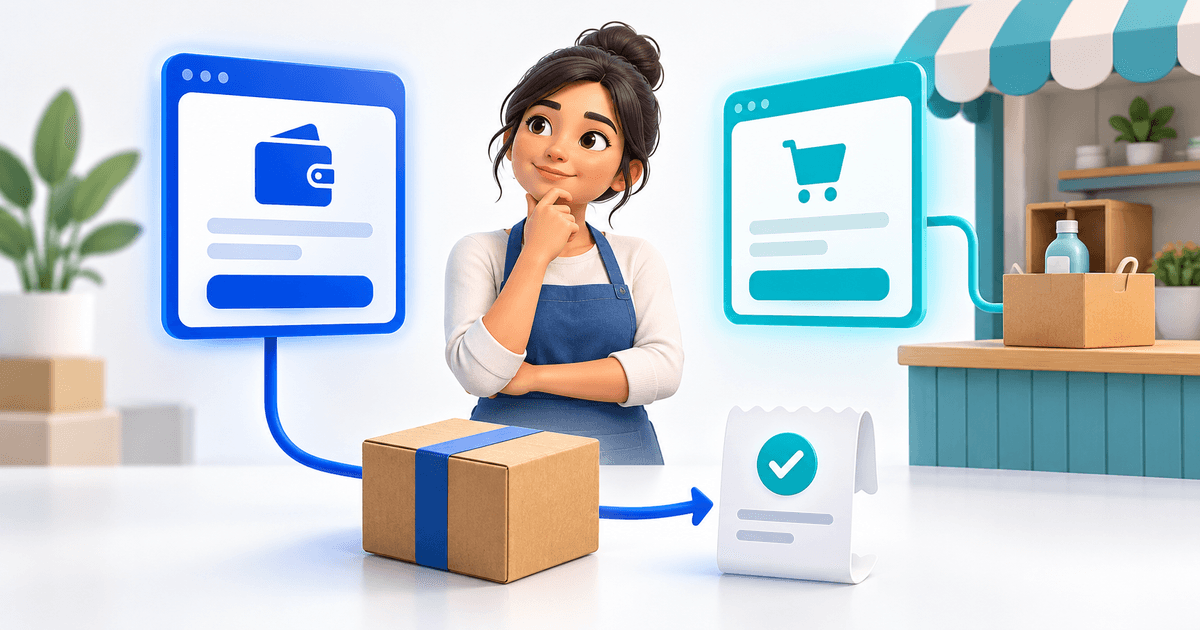
You can sell digital downloads on Carrd by linking a product button to a PayRequest digital product with its delivery file attached. Carrd presents the offer; the customer follows the link to pay, then receives access through the order's download route. This lets you keep an existing Carrd page while adding a defined purchase and delivery process.
The important step is connecting the correct offer to the correct file. A button that requests money does not, by itself, specify which planner, ebook or audio package the buyer should receive. Prepare one complete product before duplicating cards or adding more downloads to your page.
This guide uses a fictional printable planner to show the whole process. You can adapt the same workflow to PDFs, EPUB ebooks, ZIP packages or supported audio files. The example is a setup worksheet, not a claim about an existing customer's sales or a completed purchase test.
Choose Between a Link, a Payment Form and a Larger Store
Carrd already supports payment-related features. Its payment-enabled form documentation describes inserting Stripe Checkout into form submission, with Pro Plus or higher required. Carrd also documents a PayPal button widget. These options matter when choosing how much of the purchase flow to build into your page.
An external product link is a different approach: your button sends the visitor to a separately hosted offer. The payment-form plan requirement does not describe this ordinary hyperlink workflow. Check the Carrd plan for the publishing features you actually use, such as your domain or other elements, instead of assuming every payment approach requires the same setup.
For a small collection of downloads, a product-specific link can keep the setup manageable. Someone reading about the planner should reach the planner, rather than a general payment page where they have to explain what they want. The product also needs a delivery attachment and a clear description of the purchase.
If your requirements include a shared cart, complex variants or extensive catalog navigation, compare a dedicated store before building many independent buttons. Several separate product links should not be described as a unified shopping cart. Decide from the buyer's intended task rather than the number of design elements you can fit on Carrd.
Prepare One Download That Matches the Offer
Imagine a product called Weekly Studio Planner, offered as a printable PDF for €15. The buyer receives a finished document, not an editable source template. Write that distinction into the offer before designing the product card so the artwork does not suggest capabilities the file lacks.
For this example, prepare Weekly-Studio-Planner-v1.zip containing Planner.pdf and Printing-and-Use.pdf. The second document explains the paper size, printing options and permitted use. If your actual product only needs one PDF, deliver that simpler file; a ZIP is useful when it keeps related material together, not as decoration.
Open the final package from a fresh folder. Check that every promised page is included, that the document opens without an unexpected password and that instructions match the exported version. Remove drafts, duplicate files and private notes. Keep a copy of the approved release so you can later identify what a buyer received.
Create a public preview separately. A few representative page images or a clearly marked sample can explain the product without exposing the full paid file. Keep the delivery package out of public buttons, embedded documents and freely accessible folders linked from the sales page.
Create the PayRequest Product and Review Its Public Page
Set up the planner through PayRequest digital products. Add its exact name, description, price and currency, then attach the approved file. The current upload allowlist includes PDF, ZIP, EPUB, MP3, WAV and FLAC, among other formats. Check that your particular upload finishes successfully and opens correctly.
Connect an eligible payment provider and review which methods are available for your account and country. Do not promise every card, wallet or local method simply because another seller can offer it. The customer's actual checkout is the place to verify the methods you intend to advertise.
Copy the generated public product URL from PayRequest. Its product-specific route selects the intended offer before displaying the payment page. Open the address in a private browser window to ensure you copied a customer-facing destination and can recognize the planner, price and currency without your seller login.
Review file-delivery settings, including the download allowance and expiry you intend to offer. PayRequest creates order-related download access using product configuration. The words on Carrd should match those settings; “unlimited lifetime access” would be misleading if you have set a limited download period.
Add a Clear Buy Button to Carrd
Place a button beside the planner description and enter the public PayRequest product URL as its destination. Use Carrd's current button controls to set the label and external URL, then publish the change. Open the published site rather than relying only on the editor preview.
For the fictional planner, a useful label is “Buy the planner — €15.” Put the format and delivery information nearby: “Printable PDF package. Download access after confirmed payment.” If the price changes, update both the Carrd wording and PayRequest offer so buyers do not encounter conflicting amounts.
Make the transition to the payment page understandable. A short line saying that checkout is handled through PayRequest helps a visitor recognize why the domain changes. Use the same seller name and product image at the destination. Keep support information accessible before purchase as well as inside the delivered file.
If you also link the preview image, give it the same purchase destination as the button, unless it is explicitly labeled as a preview. When duplicating a product section, replace its URL as well as its image and text. Two correctly priced products can still deliver the wrong files if their buttons point to the same offer.
Copy This Carrd Product-Card Worksheet
Use the following original worksheet to prepare a product card before publishing it. It records the promise, destination and deliverable together. The values describe the fictional planner; replace them with your own product details rather than treating them as a required PayRequest configuration.
| Field | Example value | What to verify |
|---|---|---|
| Product name | Weekly Studio Planner | Same name on the linked product |
| Format | Printable PDF package | No claim of an editable template |
| Price | €15 | Same amount and currency at checkout |
| Delivery | ZIP with two PDFs | Approved release is attached |
| Button | Buy the planner — €15 | Opens this product's public URL |
| Access terms | Your configured allowance and expiry | Matches file-delivery settings |
| Support | Your seller contact | Visible before and after purchase |
Keep one row of notes for each product if your page has several offers. For example, a €15 planner and a €15 workbook need distinct product names and destinations even though their prices are identical. An amount alone cannot identify which file the buyer selected.
For a bundle, decide whether you are selling a separate packaged product or several independent purchases. A bundle should describe its contents and deliver those contents through the configured product. Do not send customers through several checkouts while presenting the offer as one combined purchase.
Test the Published Purchase and Delivery Route
Review the Carrd page on a phone first. Can a visitor identify what they receive, read the price and tap the right button? Follow the published link and compare the destination with the worksheet. This tests navigation and offer consistency, but it does not yet test payment or file delivery.
For a full check, complete an authorized purchase using the configured payment flow. Verify the confirmed order, open the buyer's delivery route, download the package and inspect its contents. For the planner example, finish by opening both PDFs. An order notification alone does not establish that the files are usable.
PayRequest's current download implementation distinguishes visiting the download landing page from requesting the file. Visiting the page does not consume the allowance; the download action checks expiry and limits before transferring the file. Keep those stages separate when a customer reports that delivery failed.
If the buyer reaches the wrong product, fix the Carrd destination. If the product is right but the attachment is wrong, correct the delivery file. If the file transfers but will not open, investigate the package or file format. Publishing a public download link bypasses the purchase route and does not repair the underlying problem.
Price the Offer and Plan for Changes
PayRequest's Free plan currently charges 2% per successful payment, capped at €25 per transaction, with payment-provider fees separate. For the illustrative €15 planner, the platform percentage is €0.30 before other applicable charges. This is a simple cost example, not a forecast of the amount paid into your bank account.
Account for your preparation and support work as well as any Carrd publishing costs. State what happens when you update the product: whether earlier buyers receive the new version and how they can request help. Replacing a file should be a deliberate release decision, not an accidental consequence of uploading an unfinished draft.
Track the buying route in stages where your existing analytics allow it: visitors to the product section, clicks to PayRequest and successful orders. A visitor leaving Carrd for checkout is not automatically a lost visitor. Conversely, a click does not prove a purchase. Use those distinctions when deciding whether the offer or checkout needs improvement.
Create a PayRequest account, prepare one digital product and connect its public URL to your Carrd page. Complete the worksheet and delivery review before expanding the catalog. If you are still comparing website builders, our Google Sites selling guide explains the equivalent workflow there.
Editorial note: AI assisted with this article and illustrative cover. PayRequest product routing, accepted formats and download behavior were reviewed in code on 11 September 2026. The planner and worksheet are original examples; no live purchase or customer revenue results are claimed.