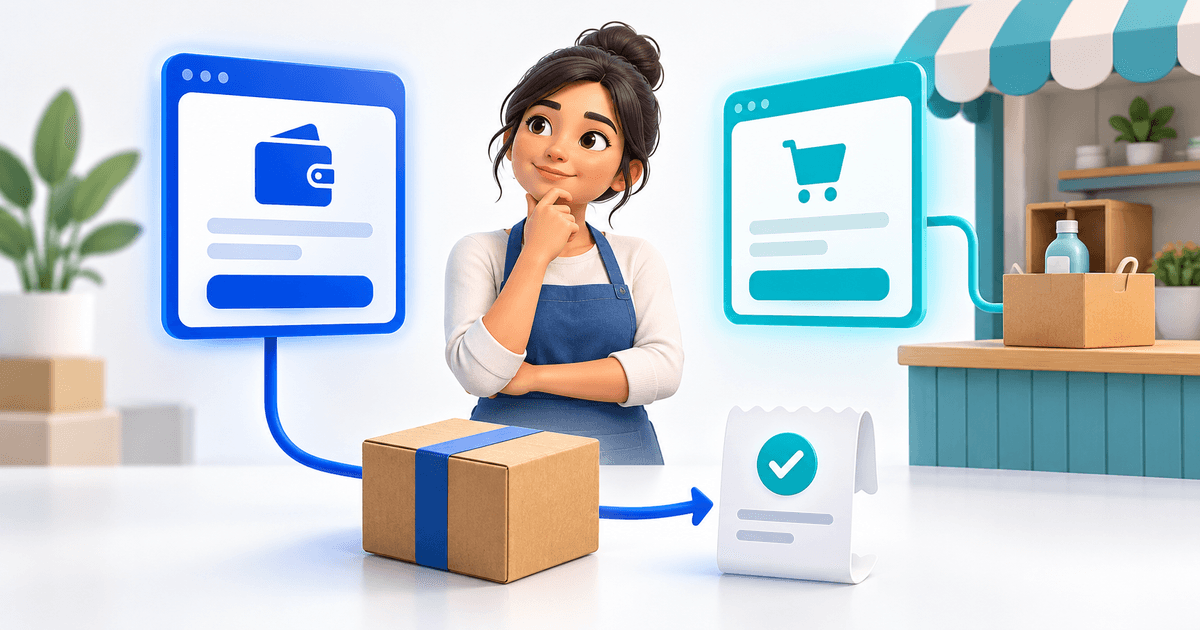
You can sell digital products on Google Sites by adding a button that links to a PayRequest digital product. Present the product, price and preview on Google Sites, attach the paid file to the PayRequest product, and use the public product URL as the button destination. The customer follows that link to pay and receives download access through the order's delivery route.
This approach suits a small catalog of PDFs, teaching materials, ebooks or music downloads. It connects your existing website to a purchase process without requiring you to rebuild its pages. Google Sites remains the place where customers learn about the offer; the linked product handles the payment and configured file delivery.
The example below is a fictional collection of classroom resources. Its purpose is to make product selection, access and delivery concrete. It is not a customer case study, and the listed amounts are illustrative prices rather than suggested market rates.
Decide What Google Sites Shows and What the Buyer Receives
Separate the public preview from the purchased material. Your site can show a cover, sample pages, the intended audience and a contents description. The complete paid PDF or ZIP should belong to the digital product's delivery setup, rather than a public button that bypasses payment.
Google documents how to add buttons to a site: the button has a name and a destination URL, which can point to another website. That ordinary external link is the connection used here. This guide does not depend on an installed Google Sites checkout extension.
Google Sites also lets you embed Google files and other content. An embed is useful for an intentionally public sample, but displaying a document does not establish a purchase requirement. Review the permissions of any preview you publish so it reveals only what you intend visitors to see.
For the classroom example, choose finished printable PDFs as the product format. If you instead sell an editable document or a link that creates a copy, describe that different outcome explicitly. A buyer who expects editable lesson plans may be disappointed by a PDF even when the download arrives correctly.
Organize a Small Catalog Before Adding Buttons
Give each offer a distinct product identity and destination. Consider a €9 lesson pack, a €9 answer-key pack and a €15 combined bundle. The first two have the same price, so the amount cannot tell you which file the buyer wanted. A product-specific link preserves that selection through the buying journey.
The following original catalog worksheet connects the public offer to its delivery package. These filenames and prices are fictional. Replace them with your own approved releases and copied product URLs before using the worksheet for a launch.
| Google Sites offer | Example price | Delivery package | Button destination |
|---|---|---|---|
| Practice Worksheets | €9 | Practice-Worksheets-v1.pdf | Its own PayRequest product URL |
| Answer Keys | €9 | Answer-Keys-v1.pdf | A different product URL |
| Complete Classroom Pack | €15 | Classroom-Pack-v1.zip | A separate bundle product URL |
Describe the bundle contents clearly so someone does not buy overlapping products unintentionally. If the bundle includes both PDFs plus teaching notes, list those contents on its product page and verify the ZIP contains them. Do not assume that creating a bundle name automatically combines files or orders behind the scenes.
Keep the audience equally clear. State whether the material is for individual use, a classroom or another scope that you actually offer. Explain printing requirements and any software needed to open the files. The product description is the right place to prevent these misunderstandings before the customer pays.
Prepare the Files and Create Your PayRequest Products
Export and inspect the final files before creating the checkout links. For printable materials, check page sizes, legibility and whether instructions mention color printing when necessary. For a ZIP, extract it into a fresh folder and open each promised document. Remove drafts and private source material.
Create each offer through PayRequest digital products, then enter its name, description, amount and currency. Attach the corresponding approved file. PayRequest's current supported upload formats include PDF, ZIP and EPUB, as well as several audio formats, so choose the format that matches what you promised.
Connect an eligible payment provider and review the methods available for your country and account. The fact that a button opens a payment page does not establish that every advertised wallet or local payment method is enabled. Check the actual destination before listing methods beside your Google Sites button.
Review the download delivery settings. The current system creates access associated with an order and product, with the configured expiry and allowance. Explain those terms accurately. A purchased file can still be copied after download, so these controls should not be described as protection against every later redistribution.
Copy the public URL for each product and record it in your catalog worksheet. Open each address in a private browser window. Confirm that the correct product, price and currency appear and that you have not copied a dashboard link. The product-specific PayRequest route resolves the intended product before rendering its payment page.
Add and Publish the Buy Buttons in Google Sites
Once the product destinations are ready, open the relevant Google Sites page and add a button near the offer. In the current editor, use Insert, choose Button, supply the name and link, and insert it into the page. Publish your changes when the placement and description are ready. Google's button instructions provide the current editor steps.
Use a label that identifies the purchase, such as “Buy Practice Worksheets — €9.” Nearby text can explain that the customer receives a printable PDF after confirmed payment and completes checkout through PayRequest. This sets expectations for the destination and the product format before the visitor leaves Google Sites.
Repeat the process with the corresponding URL for each offer. When copying a section to make another product card, replace the link as well as the visible text. The worksheet is especially useful here: two identical €9 prices make a wrong destination less obvious unless you check the product name.
Publish the site with the intended audience access and test its public URL without your editor session. An organization-managed site may have publishing restrictions, so check what your actual visitors can open. This is separate from whether the PayRequest product page is public; customers must be able to reach both parts of the journey.
Keep Google Forms and Drive Access Separate from Payment
You may already use Google Forms to collect requests or Google Drive to prepare the materials. Neither a form response nor a public file link proves that payment occurred. Keep the order confirmation as the source for whether a purchase succeeded, rather than sending the paid file to everyone who submits a form.
If you genuinely need additional intake, decide which information belongs before the sale and which belongs with the order. Avoid asking customers to identify their purchase by amount alone when several products share that price. Our Google Forms payment-matching guide explains how to keep responses and payments distinguishable without claiming an automatic connector.
For a finished PDF, attaching the file directly to the product can avoid a separate Drive permission request after purchase. A Drive link inside a delivered document still follows Drive's access settings. Payment through PayRequest does not automatically grant Google-account permissions to a restricted resource.
Likewise, do not place the complete paid Drive document inside a public Google Sites embed and assume the buy button protects it. Use a public sample for preview and the configured order-delivery route for the purchase. The distinction concerns what each visitor can access, not where you originally created the file.
Check the Full Route as a Customer
Begin on the published Google Sites page using a phone-sized screen. Read the offer, select one product and follow its button. Confirm the same product and amount at the destination. Repeat for each catalog entry, including the bundle. This checks navigation and consistency without claiming a successful payment.
Then perform an authorized purchase check through the actual configured flow. Confirm the order, open the buyer's download route and inspect the delivered file. For the classroom bundle, extract the ZIP and compare its contents with the offer. A green payment status alone does not prove the buyer received the right teaching materials.
Investigate problems by stage. A restricted site is a publishing-access issue; a wrong product is a button-destination issue; a wrong PDF is an attachment issue. If the customer cannot download, check the order and configured access allowance or expiry. If the document downloads but cannot be opened, review the file itself.
In PayRequest's current implementation, simply visiting the download landing page does not consume a download. The action that transfers the file checks the allowance and expiry. This helps distinguish an email link being opened from an actual file request when reviewing a delivery question.
Set the Price and Launch One Reliable Offer
PayRequest pricing currently lists 2% per successful payment on the Free plan, capped at €25 per transaction, with provider fees separate. At the illustrative €9 price, the platform percentage is €0.18 before other applicable costs. This calculation is not a net-payout estimate or a promise that every payment method has the same fee.
Keep your release notes simple: product name, price, public URL, attached filename and date reviewed. If you update a worksheet or change a bundle price, revisit the affected Google Sites section and PayRequest product together. Stale descriptions can make an otherwise functioning checkout confusing.
Create your first PayRequest digital product, attach the approved file and connect its public link to one published Google Sites button. Complete the customer-route checks before adding the rest of the catalog. If your page is built elsewhere, the Carrd digital-download guide covers the corresponding setup.
Editorial note: AI assisted with this article and illustrative cover. Product routing and download behavior were reviewed in PayRequest code on 11 September 2026. The classroom catalog and review process are original examples. No live purchase, automatic Google Forms integration or customer sales results are claimed.