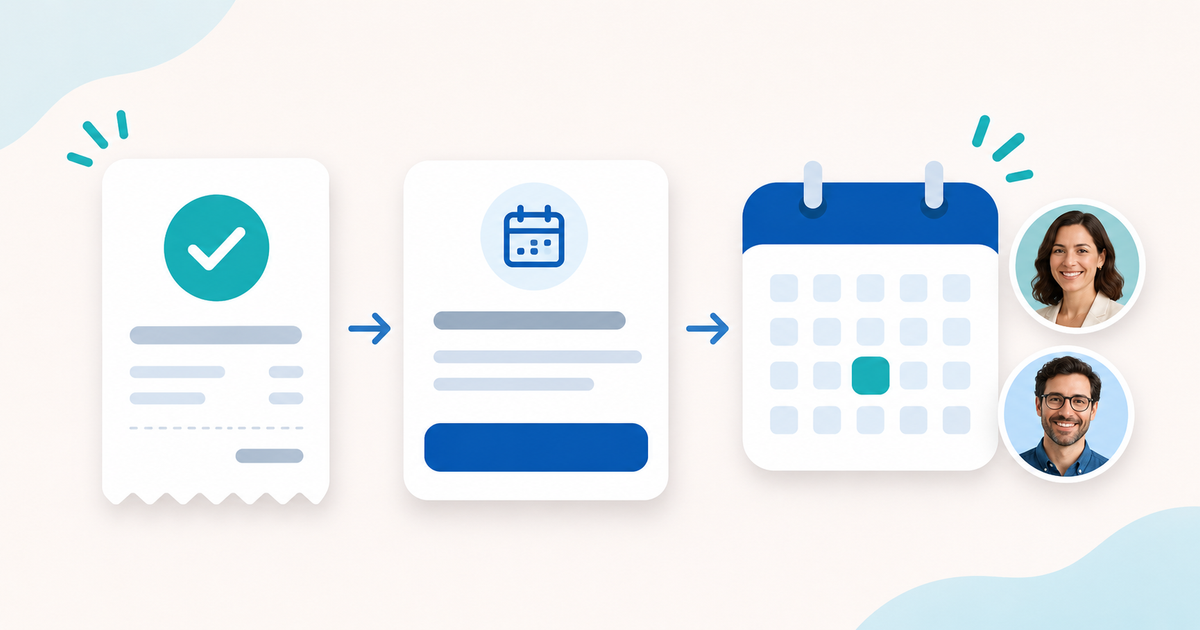
To sell a consultation online, offer the session as a service, collect payment and give the buyer a clear way to arrange the appointment. You do not need to upload a thank-you PDF just to reveal a booking link. PayRequest’s After payment settings let you add the instructions and an optional action button directly to the product.
This workflow is for a tutor, adviser or coach who already uses an external booking page. It connects a paid purchase with the next action. It does not automatically reserve time in that external calendar.
Decide what the buyer is actually purchasing
Describe the consultation before checkout: its duration, subject, format, included preparation and what happens if no suitable appointment is available. If the buyer chooses a time only after paying, say so explicitly. A message revealed after payment cannot replace the information needed to decide whether to buy.
Use Service for a consultation. If you are selling personally prepared digital material delivered later, Manual delivery is another appropriate delivery method. A finished workbook belongs in File download; a resource hosted elsewhere belongs in External link. These are different promises, even when all three benefit from instructions.
The PayRequest after-payment guide describes the product settings and delivery choices. The new message accompanies delivery rather than replacing the purchased work.
Work through one consultation offer
Consider a fictional 45-minute study consultation. The seller uses an external scheduling page, asks the student to prepare course topics and sends personalised notes within two working days after the call. This is a worked example, not a tested customer purchase or a promised PayRequest delivery time.
| Stage | Seller configures | Buyer should understand |
|---|---|---|
| Before payment | Service description, duration and scheduling policy | Payment buys a consultation; the appointment is chosen afterwards |
| After confirmed payment | Buyer message and booking button | Open the scheduler, select a time and prepare questions |
| Appointment confirmation | Rules in the external booking service | The external service confirms the selected appointment |
| Actual delivery | Consultation and promised notes | The paid message alone does not deliver the consultation or notes |
If you need customers to choose a time inside PayRequest’s own booking flow, evaluate PayRequest Bookings. Adding an external link is a separate workflow and should not be described as a native calendar integration.
Write instructions the buyer can act on
A useful message answers three questions: what did I buy, what do I do now, and when will the remaining work arrive? Here is an original template you can adapt to the example offer:
> Thank you for purchasing your 45-minute study consultation. Use the button below to choose a time. Bring your course topics and the three questions you most want to discuss. Your personalised notes will be sent within two working days after the consultation. If no suitable time is available, contact us through the support details in your order.
Button text: Book your consultation
Button destination: Your own public HTTPS scheduling page.
Only promise the two-working-day timeframe if you can fulfil it. Publish the real support details rather than copying a placeholder. Avoid asking buyers to send sensitive material through an unsuitable public form.
For a design review, replace the preparation sentence with a request for the project brief. For a coaching call, explain the call format and how the meeting link will be provided. One specific next action is more useful than an unrelated list of social links.
Configure After payment in PayRequest
- Open Products, edit the product and select After payment. In the full product wizard, find this on Review.
- Enter Message for the buyer, up to 5,000 characters. Keep essential offer information visible in the public description too.
- Enter both Button text (optional) and Button link (HTTPS) to show a button. Text can contain up to 80 characters and the URL up to 2,048 characters. Use a public HTTPS URL without a username or password embedded in it.
- Check Buyer preview, then save the product or complete creation. The preview button does not open the destination, so review your scheduling page separately.
Leave both button fields empty when a message alone is sufficient. Saving the product does not send an email or resend an old receipt.
Know where buyers can return to the instructions
After confirmed payment, the message can appear on the payment confirmation page for the buyer who started checkout in that browser, or the signed-in customer who owns the purchase. It also appears in the existing order confirmation or completion email when that email is sent for a paid order; your existing email settings still apply.
Buyers can find the instructions in their shop order details and in My downloads on your Payment Page, even when personal delivery has no downloadable file. An ordinary public invoice link does not grant access to those private instructions.
This matters when someone pays on their phone but plans to book later. Explain the available return route without claiming that every confirmation URL reveals private information in every browser.
Keep payment, scheduling and delivery separate
A button opens its destination when selected. It does not automatically book the consultation, create an external account or grant access to an external resource. Configure appointment availability and confirmations with your scheduling service separately.
An unpaid or authorization-only payment does not unlock the private instructions. Showing the message also does not mark the order as delivered. Open the paid order and use the existing Order delivery controls to start work and mark the actual delivery complete.
For new orders, the message and button are saved with the purchase. Changing the product later does not rewrite those saved instructions or add them to historical orders without a saved message. Subscription payments without an associated order use the current product message.
Refunds, chargebacks and access restrictions can prevent private instructions from being shown again. An external service controls its own access; changing a PayRequest message does not revoke a link the buyer already received.
Check the offer before sharing it
Review the public offer, message, button text and external destination together. Confirm that the scheduler has the right appointment duration and availability, that buyers know how to ask for help and that you have a process for paid orders that are never scheduled. The on-screen preview is useful, but it is not a completed payment or booking test.
If a PDF contains a real workbook or substantial reference material, keep it as part of the offer. The unnecessary step is creating an empty download solely to carry a thank-you message or booking URL.
Digital products remain available on PayRequest Free with a 2% standard platform fee capped at €25 per transaction. Active Premium (€5/month) and Business (€20/month) remove standard platform fees. Provider fees and commission-payment exceptions remain separate; registration or plan selection alone does not activate paid access.
Start with one accurately described consultation and its next step. Use after-payment messages to give the buyer instructions they can return to, then manage the actual appointment and delivery in the appropriate systems.
Editorial note: AI assisted with this article and illustrative cover. PayRequest’s published after-payment documentation was reviewed on 13 November 2026. The consultation, message template and review checklist are original examples; no live payment, appointment or customer result is claimed.