Sending an invoice is only half the job. The other half — the part that actually matters — is getting paid. And the single biggest reason invoices go unpaid for weeks is friction: customers have to open the invoice, find the bank details, open their banking app, type in an IBAN, enter the reference number, double-check the amount, and hit send. Every step is a chance to procrastinate.
A payment link removes all of that. Instead of asking your customer to do six things, you ask them to do one: click a link and confirm. The result is dramatic. Businesses that add payment links to their invoices typically see payment times drop from an average of 23 days to under 5 days.
This guide walks you through exactly how to add a payment link to any invoice — whether you use PDF invoices, email templates, or accounting software — and why this small change can transform your cash flow.
Why Traditional Invoices Are Slow
Before diving into the how, it helps to understand the why. Traditional invoices with only bank transfer details create a multi-step process for your customer.
When a customer receives an invoice with bank details (IBAN, BIC, reference number), they need to manually log into their bank, create a new payment, copy each field correctly, and submit. This process takes 5–10 minutes of focused attention — attention your customer would rather spend on their own work.
The cognitive load is significant. Studies on payment behaviour show that each additional step in a payment process reduces completion rates by 10–15%. A traditional bank transfer invoice has at least six steps between "I want to pay this" and "payment sent."
Because paying a traditional invoice requires effort, it gets postponed. Your customer opens the invoice, sees it requires manual bank transfer, thinks "I'll do this later," and closes it. Later becomes tomorrow. Tomorrow becomes next week. Next week becomes an awkward reminder email.
This is not a trust issue or a cash flow problem on your customer's side — it is a UX problem on yours. The easier you make it to pay, the faster you get paid.
What Is a Payment Link on an Invoice?
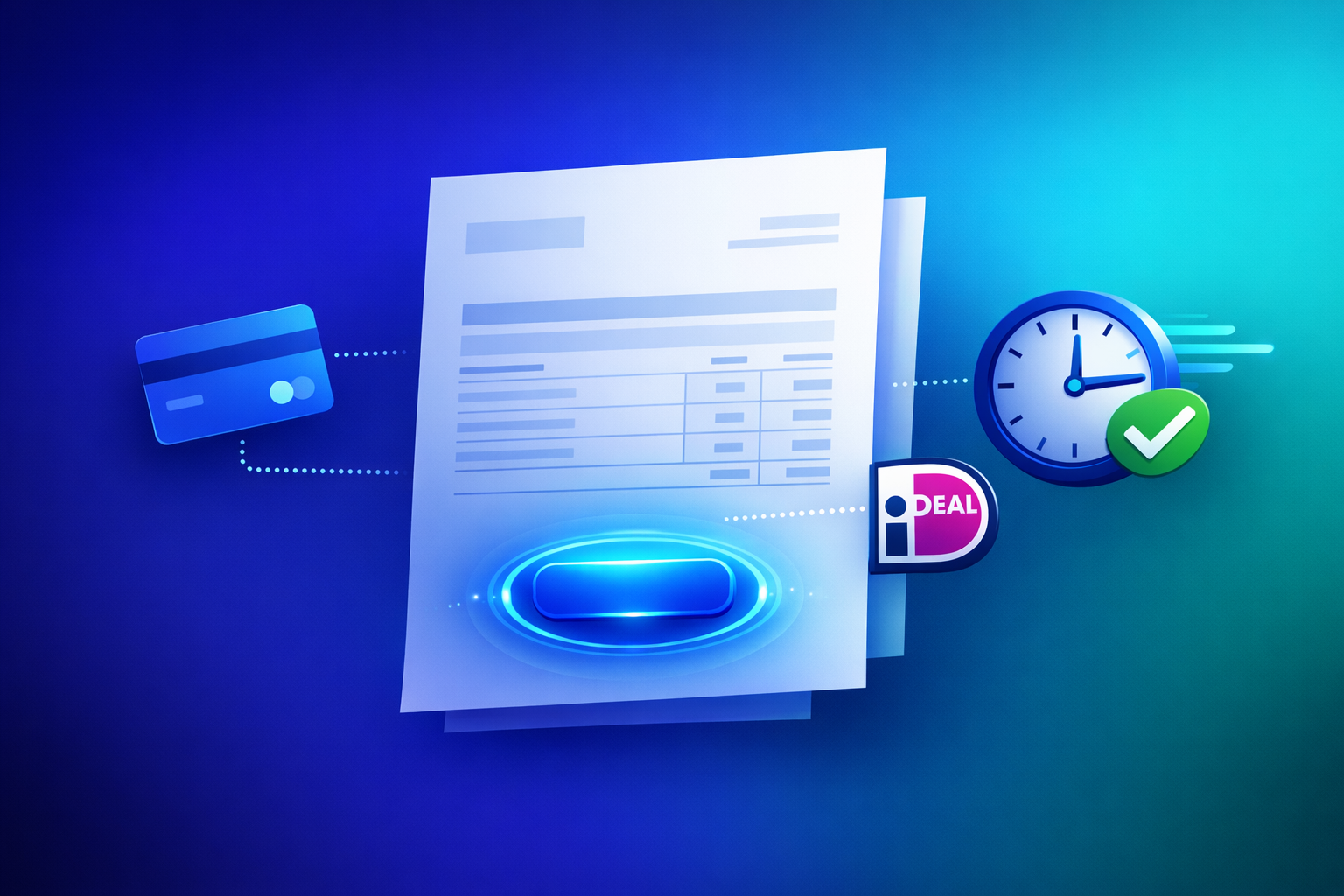
A payment link is a URL that takes your customer directly to a secure payment page pre-filled with the correct amount and invoice details. When the customer clicks the link, they land on a checkout page where they can pay instantly using their preferred payment method: credit card, iDEAL, SEPA direct debit, Bancontact, PayPal, Apple Pay, or any other method you accept.
With a traditional invoice, you provide your bank details and the customer initiates the payment from their side. With a payment link, you initiate the payment request and the customer simply confirms it. This fundamental shift — from "push" to "pull" — changes the entire payment dynamic.
The payment link also gives you something bank transfers do not: instant confirmation. As soon as the customer pays, you know. No waiting for bank processing, no checking your account, no wondering if that transfer was for invoice #1047 or #1052.
When a customer clicks a payment link on your invoice, they see a branded payment page with your company name, the invoice amount, and a choice of payment methods. The entire process takes 30 seconds or less. They select their payment method, authenticate (card details, iDEAL bank selection, or biometric confirmation for Apple Pay), and they are done.
How to Add a Payment Link to Your Invoice
The process has three stages: create the payment link, embed it in your invoice, and send.
In PayRequest, creating a payment link takes less than a minute. Navigate to Payment Links, click "Create," enter the amount and a description that matches your invoice (for example, "Invoice #1047 — Website redesign"), and click generate.
You now have a unique URL like `https://pay.payrequest.io/abc123` that is tied to that specific invoice amount. You can also generate a QR code for the same link, which is useful for printed invoices.
PayRequest's Smart Links go further — they track whether the link has been opened, how many times, and from which device. This gives you visibility into whether your customer has even looked at the invoice, which is invaluable for follow-up decisions.
How you embed the link depends on your invoice format.
PDF invoices: Open your invoice template in your editor (Word, Google Docs, Canva, or your accounting software's template editor). Add a prominent button or hyperlinked text near the payment details section. Use text like "Pay This Invoice" or "Click Here to Pay" and hyperlink it to your payment link URL. Place it above the fold — near the top of the invoice or right next to the total amount, where your customer's eye naturally goes.
Email invoices: If you send invoices by email, add the payment link as a prominent button in the email body itself. Do not bury it at the bottom. Place the payment button immediately after the invoice summary (amount, due date, description). Many customers will click the button without even opening the attached PDF.
Accounting software: Most modern accounting tools (Xero, QuickBooks, FreshBooks, Exact, Moneybird) support custom fields or notes on invoices. Paste your payment link into the invoice notes field, the custom URL field, or the email message that accompanies the invoice. Some tools also support custom HTML email templates where you can add a styled payment button.
Printed invoices: For physical invoices, generate a QR code from your payment link. PayRequest's Smart Links include QR code generation. Place the QR code prominently on the invoice with a label like "Scan to pay instantly." This bridges the gap between paper and digital payment.
Send the invoice through your normal channel — email, accounting software, post, or messaging app. With PayRequest, you can track when the link is opened and when payment is completed. If the link has not been opened after a few days, you know to follow up. If it has been opened but not paid, a gentle reminder referencing the payment link is more effective than a generic "please pay" email.
Payment Link Best Practices for Invoices
Adding the link is the minimum. Optimising how you present it makes the difference between 80% and 95% of invoices paid within a week.
Do not hide your payment link in small grey text at the bottom of the invoice. Make it the most visible element after the total amount. Use a coloured button (blue, green, or your brand colour), increase the font size, and position it where the eye naturally lands. On a PDF invoice, this is typically the right side of the page, near the total. In an email, this is immediately after the amount summary.
One of the biggest advantages of a payment link over bank transfer details is payment method choice. Your customer in the Netherlands might prefer iDEAL. A German customer might use SEPA direct debit. A UK client might use a credit card. By offering multiple payment methods through a single link, you remove another barrier to payment.
PayRequest connects to Stripe, Mollie, and PayPal, giving your customers access to 20+ payment methods through one link.
Combine your payment link with automated invoice reminders. PayRequest can send reminder emails with the payment link included when an invoice approaches or passes its due date. This combines the convenience of a payment link with the nudge of a timely reminder — a powerful combination for reducing overdue invoices.
When creating the payment link, match the description exactly to your invoice. If your invoice says "Invoice #1047 — Website redesign, March 2026," your payment link description should say the same thing. This builds trust. Customers are more likely to click a payment link when the description matches the invoice they are looking at.
Real Impact: Before and After Payment Links
The effect of adding payment links to invoices is measurable from the first invoice you send.
Traditional bank transfer invoices: 23 days average payment time. This is the industry standard for B2B invoices with 30-day payment terms. Many businesses accept this as normal, but it is not — it is a symptom of a friction-heavy payment process.
Invoices with embedded payment links: 2–5 days average payment time. The reduction is immediate and consistent. Most customers pay within the first day of receiving the invoice, because clicking a link is an impulse-friendly action.
Bank transfer invoices have a roughly 85% payment rate within 30 days. The remaining 15% require at least one reminder, and some require multiple follow-ups. Invoices with payment links see 92–97% payment rates within 14 days, with most payments completed within the first 48 hours.
Every manual bank transfer requires reconciliation: matching incoming bank payments to outstanding invoices. With payment links, reconciliation is automatic — PayRequest's payment matching connects each payment to its corresponding invoice instantly. For businesses sending 50+ invoices per month, this saves hours of bookkeeping time.
Common Questions About Invoice Payment Links
Payment links are URL-based, so they work with any software that allows you to add text, links, or notes to invoices. This includes Xero, QuickBooks, FreshBooks, Exact Online, Moneybird, Wave, and even Excel or Google Sheets templates. You do not need a technical integration — just paste the URL.
Yes. PayRequest payment links use HTTPS encryption, are PCI DSS compliant through Stripe and Mollie, and support 3D Secure authentication for card payments. Each link is unique and tied to a specific amount, so it cannot be tampered with. Read more about payment link security.
Yes. PayRequest supports creating multiple payment links through the dashboard or via the API. For businesses that send batches of invoices, you can generate a unique payment link for each invoice and include it in your email merge or accounting software workflow.
Both you and the customer receive instant confirmation. PayRequest automatically marks the payment as received, sends a receipt to the customer, and updates your dashboard. If you use PayRequest's invoicing feature, the invoice status changes to "paid" automatically.
How PayRequest Makes This Easy
PayRequest was built for exactly this use case: making it effortless for businesses to get paid. Here is how the platform streamlines the invoice payment link workflow.
Create a payment link in under 60 seconds. Enter the amount, add a description, and share. No coding, no complex setup, no merchant account applications. Sign up and create your first link in minutes.
Every Smart Link includes open tracking, QR code generation, and analytics. Know exactly when your customer views the payment page and follow up intelligently based on actual behaviour rather than assumptions.
If you want everything in one place, PayRequest's invoicing feature creates professional invoices with payment links already embedded. Send the invoice directly from PayRequest, and the customer receives a beautiful, branded invoice with a one-click payment button — no manual link embedding required.
When a customer pays through a payment link, PayRequest automatically matches the payment to the invoice. No more manual reconciliation, no more spreadsheets, no more "which invoice was this payment for?" questions. This is especially powerful when combined with bank transfers via Ponto, where matching is historically the most time-consuming.
PayRequest charges €20/month for unlimited invoices and payment links. There are no transaction fees from PayRequest — you only pay the fees from your payment provider (Stripe, Mollie, or PayPal). For most payment methods, this means 1.5–2.5% for cards, €0.29 for iDEAL, or even 0% for bank transfers via Ponto.
Start Adding Payment Links to Your Invoices Today
The gap between sending an invoice and receiving payment does not have to be three weeks. A single change — adding a payment link — cuts that time to a few days. Your customers get a better experience, your cash flow improves, and your administrative overhead drops.
Create your free PayRequest account and generate your first payment link in under a minute. Then paste it into your next invoice and see the difference for yourself.
Already using PayRequest? Explore Smart Payment Links for advanced tracking and QR codes, or set up automated invoicing to send invoices with embedded payment links automatically.